VxRail: How to Update the VMware Tools Version on the ESXi host
Summary: This article instructs users how to update the VMware Tools version in the ESXi host using the Broadcom offline packet. Do not use this article for vLCM enabled clusters. Check notes for more information. ...
This article applies to
This article does not apply to
This article is not tied to any specific product.
Not all product versions are identified in this article.
Instructions
-
Download the
VMware Tools Offline VIB Bundlefrom the Broadcom support page. Go to the My Downloads section and search by VMware Tools. Select the wanted version and download the Offline vSphere Installation Bundle (VIB):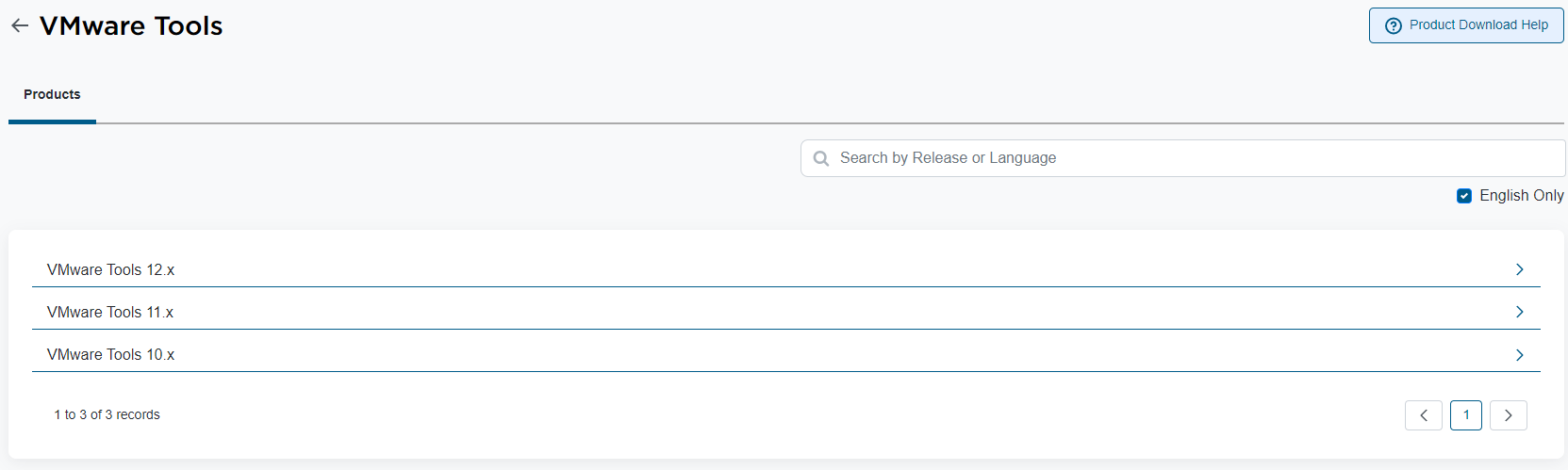

-
Before applying the update, you can check the current VMware Tools version in the ESXi host. Access the ESXi host by SSH and run the following command:
esxcli software component get | grep VMware-VM-Tools -B 1 -A 14
Example:
[root@host01:~] esxcli software component get | grep VMware-VM-Tools -B 1 -A 14

VMware-VM-Tools_12.3.5.22544099-23794019
   Name: VMware-VM-Tools
   Display Name: ESXi VM Tools
   Version: 12.3.5.22544099-23794019
   Display Version: 12.3.5
   VIBs: VMware_locker_tools-light_12.3.5.22544099-23794019
   Vendor: VMware
   Summary: ESXi Tools Component
   Severity: general
   Urgency: critical
   Category: security
   Release Type: patch
   Kburl: https://docs.vmware.com/en/VMware-vSphere/7.0/rn/vsphere-esxi-70u3q-release-notes/index.html#Resolved%20Issues-VMware-VM-Tools_12.3.5.22544099-23794019
   Description: This component contains the tools VIB.
   Contact: VMware
   ReleaseDate: 05-21-2024
In this case, the current VMware Tools version in the ESXi host is
12.3.5.22544099-23794019. -
In the ESXi host, create a temporary directory to place the
VMware Tools Offline VIB Bundle. In this case, version 12.4.5 is approximately 370 MB in size. You must place this file in a supported ESXi host directory. In this example, a temporary directory inside a local datastore is created:[root@host01:~] cd /vmfs/volumes/LOCAL-DATASTORE [root@host01:/vmfs/volumes/LOCAL-DATASTORE] mkdir vmware-tools-temp
After creating the temporary directory, copy the
VMware Tools Offline VIB Bundlefile into it. You can copy the file to the ESXi host using WinSCP, PowerShell, or your preferred application. -
To update the VMware Tools version, it is unnecessary to put the ESXi host in maintenance mode or reboot it. You can use the following command to confirm it:
esxcli software sources vib get --depot=file:/vmfs/volumes/LOCAL-DATASTORE/vmware-tools-temp/VMware-Tools-12.4.5-core-offline-depot-ESXi-all-23787635.zip
Command output example:
VMware_locker_tools-light_6.5.0-12.4.5.23787635
   Name: tools-light
   Version: 6.5.0-12.4.5.23787635
   Type: locker
   Vendor: VMware
   Acceptance Level: VMwareCertified
   Summary: VMware Tools VIB for Windows and Linux guests for ESXi 6.5.0
   Description: This package contains cdrom and floppy images used to install the VMware Tools inside virtual machines.
   ReferenceURLs:
   Creation Date: 2024-05-22
   Depends: esx-version = 6.5.0
   Conflicts:
   Replaces:
   Provides:
   Maintenance Mode Required: False
   Hardware Platforms Required:
   Live Install Allowed: True
   Live Remove Allowed: True
   Stateless Ready: True
   Overlay: False
   Tags:
   Payloads: tools

VMware_locker_tools-light_12.4.5.23787635-23919197
   Name: tools-light
   Version: 12.4.5.23787635-23919197
   Type: locker
   Vendor: VMware
   Acceptance Level: VMwareCertified
   Summary: VMware Tools VIB for Windows and Linux guests (generated by vmtoolspkg build 23919197)
   Description: This package contains cdrom and floppy images used to install the VMware Tools inside virtual machines.
   ReferenceURLs:
   Creation Date: 2024-05-22
   Depends: esx-version >= 6.6.0
   Conflicts:
   Replaces:
   Provides:
   Maintenance Mode Required: False
   Hardware Platforms Required:
   Live Install Allowed: True
   Live Remove Allowed: True
   Stateless Ready: True
   Overlay: False
   Tags:
   Payloads: tools
-
Run the following command to apply the update:
esxcli software vib install --depot=file:/vmfs/volumes/LOCAL-DATASTORE/vmware-tools-temp/VMware-Tools-12.4.5-core-offline-depot-ESXi-all-23787635.zip
Command output example:
[root@vxrail01:/vmfs/volumes/LOCAL-DATASTORE/vmware-tools-temp] esxcli software vib install --depot=file:/vmfs/volumes/LOCAL-DATASTORE/vmware-tools-temp/VMware-Tools-12.4.5-core-offline-depot-ESXi-all-23787635.zip
Installation Result
   Message: Operation finished successfully.
   Reboot Required: false
   VIBs Installed: VMware_locker_tools-light_12.4.5.23787635-23919197
   VIBs Removed: VMware_locker_tools-light_12.3.5.22544099-23794019
   VIBs Skipped:
-
After that, you can check the VMware Tools version:
[root@vxrail01:/vmfs/volumes/LOCAL-DATASTORE/vmware-tools-temp] esxcli software component get | grep VMware-VM-Tools -B 1 -A 14TOOLS-23919197
   Name: VMware-VM-Tools
   Display Name: VMware Tools Async Release
   Version: 12.4.5.23787635-23919197
   Display Version: 12.4.5
   VIBs: VMware_locker_tools-light_12.4.5.23787635-23919197
   Vendor: VMware
   Summary: VMware Tools 12.4.5 Async Release
   Severity: general
   Urgency: important
   Category: bugfix
   Release Type: patch
   Kburl: https://docs.vmware.com/en/VMware-Tools/12.4/rn/vmware-tools-1245-release-notes/index.html
   Description: VMware Tools 12.4.5 Async Release
   Contact: http://www.vmware.com/support/contacts/
   ReleaseDate: 06-27-2024
As you can see, the new VMware Tools version is
12.4.5.23787635-23919197. -
Now, you can access the vSphere Client, select the ESXi host that you updated the VMware Tools, and update the VMware Tools on virtual machines (VMs) running on it.
It is recommended to be updated on all ESXi hosts in the cluster!
Additional Information
For vLCM enabled clusters, follow the steps under VxRail: Update VMware Tools to address the VMSA issue.
Affected Products
VxRail, VxRail Appliance Series, VxRail G Series Nodes, VxRail D Series Nodes, VxRail D560, VxRail D560F, VxRail E Series Nodes, VxRail E560, VxRail E560F, VxRail E560N, VxRail E660, VxRail E660F, VxRail E660N, VxRail E665, VxRail E665F, VxRail E665N
, VxRail G560, VxRail G560F, VxRail P Series Nodes, VxRail P470, VxRail P570, VxRail P570F, VxRail P580N, VxRail P670F, VxRail P670N, VxRail P675F, VxRail P675N, VxRail S Series Nodes, VxRail S570, VxRail S670, VxRail Software, VxRail V Series Nodes, VxRail V570, VxRail V570F, VXRAIL V670F, VxRail VD-4510C, VxRail VD-4520C, VxRail VD Series Nodes, VxRail VE-660, VxRail VE-6615, VxRail VE-670, VxRail VP-760, VxRail VP-7625, VxRail VP-770, VxRail VS-760
...
Article Properties
Article Number: 000227059
Article Type: How To
Last Modified: 11 Mar 2026
Version: 3
Find answers to your questions from other Dell users
Support Services
Check if your device is covered by Support Services.