Dell Azure Stack HCI Fully Converged Network Configuration
Summary: This article provides an example of how to configure a fully converged network for a Dell Technologies Solutions Microsoft Azure Stack HCI cluster host. Information in this article is taken from "Deployment instructions for fully converged network configuration," available at https://infohub.delltechnologies.com/en-us/l/e2e-deployment-and-operations-guide-with-scalable-networking-windows-1/fully-converged-network-configuration-38/2/. ...
This article applies to
This article does not apply to
This article is not tied to any specific product.
Not all product versions are identified in this article.
Instructions
All steps below are run using PowerShell. Cluster management and storage network traffic use the same Switch Embedded Team (SET). The three networks run across three separate virtual adapters. Configuration of the SET switch, VLANs, and virtual adapters is included below.
Do not wrap the PowerShell commands below, or they will fail after copying large sections of the script into the PowerShell window. The configuration script below must be run on all cluster nodes.
The image below is a hardware diagram of a configured Azure Stack HCI converged network using a SET for Management and Storage network communication: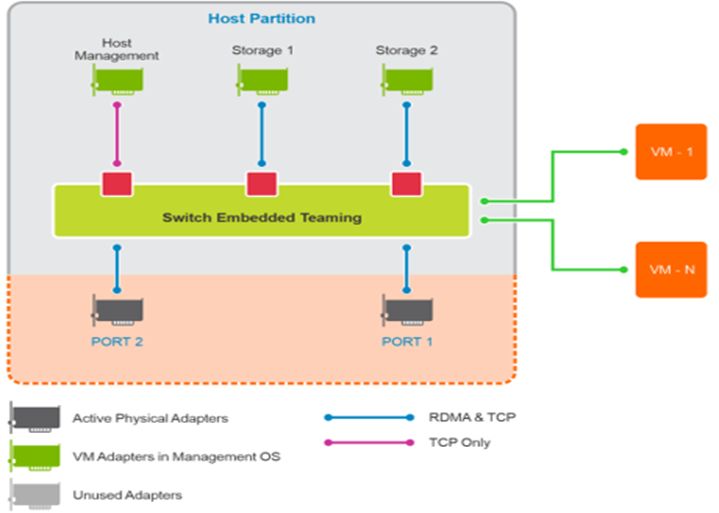
Figure 1: Diagram of a fully converged network in Azure Stack HCI
The script steps below must be run at an administrative PowerShell prompt:
Note: Adapter names, object names, IP addresses, and VLAN tag values in the script depend on the environment where the HCI cluster is being deployed. Set these values appropriately before running the script.
$ErrorActionPreference = 'Stop'
#region Variables for the scenario
# You must specify 2 or 4 network adapter port names
$netAdapterName = @('SLOT 4 PORT 1','SLOT 4 PORT 2')
$switchName = 'S2DSwitch'
# Management Adapter Parameters
$managementAdapterName = 'Management'
# VLAN ID for host management traffic; if no VLAN is preferred set this to 0
$managementVlanId = 102

# Management Gateway address
$managementGateway = '10.0.0.1'

# DNS server address
$managementDns = '10.0.0.19'

# Set this to a string 'DHCP' for a dynamic IP address
$managementIPAddress = '10.0.0.51'

# Management address prefix (24 translates to subnet mask 255.255.255.0)
$managementAddressPrefix = 24

# Storage Adapter Parameters
$storageAdapterPrefix = 'Storage'

# You must specify 1 or 2 or 4 VLANIDs
# You can use 0 as the value if you don't want to use VLANs for storage traffic
$storageVlanId = @(103,104)

# You must specify 2 or 4 IP Addresses
# DHCP as a value is accepted if you want dynamically assigned IP addresses
$storageIPAddress = @('171.16.101.51','172.16.102.51')

# You can specify 1 or 2 or 4 prefix length values
$StorageAddressPrefix = @(24)

#endregion

## Create a VM switch for management and Storage traffic
$null = New-VMSwitch -Name $switchName -AllowManagementOS 0 -NetAdapterName $netAdapterName -Verbose

## Add VM Network Adapters and configure VLANs and IP addresses as needed
### Management Adapter
$managementAdapter = Add-VMNetworkAdapter -SwitchName $SwitchName -ManagementOS -Passthru -Name $managementAdapterName -Verbose

if ($managementVlanId -and ($managementVlanId -ne 0))
{
Set-VMNetworkAdapterVlan -VMNetworkAdapter $managementAdapter -Access -VlanId $managementVlanId -Verbose
Start-Sleep -Seconds 5
}
if ($ManagementIPAddress -ne 'DHCP')
{
$null = New-NetIPAddress -InterfaceAlias "vEthernet ($managementAdapterName)" -IPAddress $managementIPAddress -DefaultGateway $managementGateway -PrefixLength $managementAddressPrefix -Verbose
Set-DnsClientServerAddress -InterfaceAlias "vEthernet ($managementAdapterName)" -ServerAddresses $managementDns -Verbose
}

### Storage Adapters
for ($i = 0; $i -lt $netAdapterName.Count; $i++)
{
$storageAdapterName = "${storageAdapterPrefix}$($i+1)"
# if there is a single VLAN for storage use the first and only element
if ($storageVlanId.Count -eq 1)
{
$storageVlan = $storageVlanId[0]
}
else
{
# else use the right index to get the VLAN ID
$storageVlan = $storageVlanId[$i]
}

# Check if only one prefix is provided
if ($StorageAddressPrefix.Count -eq 1)
{
$StoragePrefix = $StorageAddressPrefix[0]
}
else
{
# if more than one, use the right index to get the address prefix
$StoragePrefix = $StorageAddressPrefix[$i]
}
$storageAdapter = Add-VMNetworkAdapter -SwitchName $SwitchName -ManagementOS -Passthru -Name $storageAdapterName -Verbose

 if ($storageVlan -and ($storageVlan -ne 0))
{
# Set VM Network adapter VLAN only if the VLAN ID specified is other than 0
Set-VMNetworkAdapterVlan -VMNetworkAdapter $storageAdapter -Access -VlanId $storageVlan -Verbose
Start-Sleep -Seconds 5
}
if ($StorageIPAddress[$i] -ne 'DHCP')
{
$null = New-NetIPAddress -InterfaceAlias "vEthernet ($storageAdapterName)" -IPAddress $StorageIPAddress[$i] -PrefixLength $StoragePrefix -Verbose
}
## Set VMnetwork adapter to Physical adapter mapping
Set-VMNetworkAdapterTeamMapping -VMNetworkAdapterName $storageAdapterName -ManagementOS -PhysicalNetAdapterName $netAdapterName[$i]
}
Videos
Affected Products
AX Nodes, AX-640, ax-650, AX-6515, AX-740XD, AX-750, AX-7525, Integrated System for Microsoft Azure Stack Hub, Integrated System for Microsoft Azure Stack Hub 13G, Integrated System for Microsoft Azure Stack Hub 14GProducts
Microsoft Windows Server 2016, Microsoft Windows Server 2019, Microsoft Windows Server 2022Article Properties
Article Number: 000200958
Article Type: How To
Last Modified: 20 Feb 2026
Version: 6
Find answers to your questions from other Dell users
Support Services
Check if your device is covered by Support Services.