How to configure D@RE certificates for Unisphere for PowerMax 9.2 or 10.x
Summary: Using Unisphere for PowerMax version 9.2 or higher to renew the SSL Certificates, which are used for an external D@RE-Server.
This article applies to
This article does not apply to
This article is not tied to any specific product.
Not all product versions are identified in this article.
Instructions
Starting from Unisphere for PowerMax 9.2 or higher now we can configure D@RE certificates using the below procedure.
Configuring D@RE certificates consists of two major parts:
- Enabling D@RE Configuration management and uploading the certificates using Unisphere for PowerMax. This is done by customers.
- Re-enrolling KTP Client with Server using Simplified SymmWin by PowerMax Support.
Elaborate steps are as follows:
A. Enabling D@RE Configuration management and uploading the certificates using Unisphere for PowerMax.
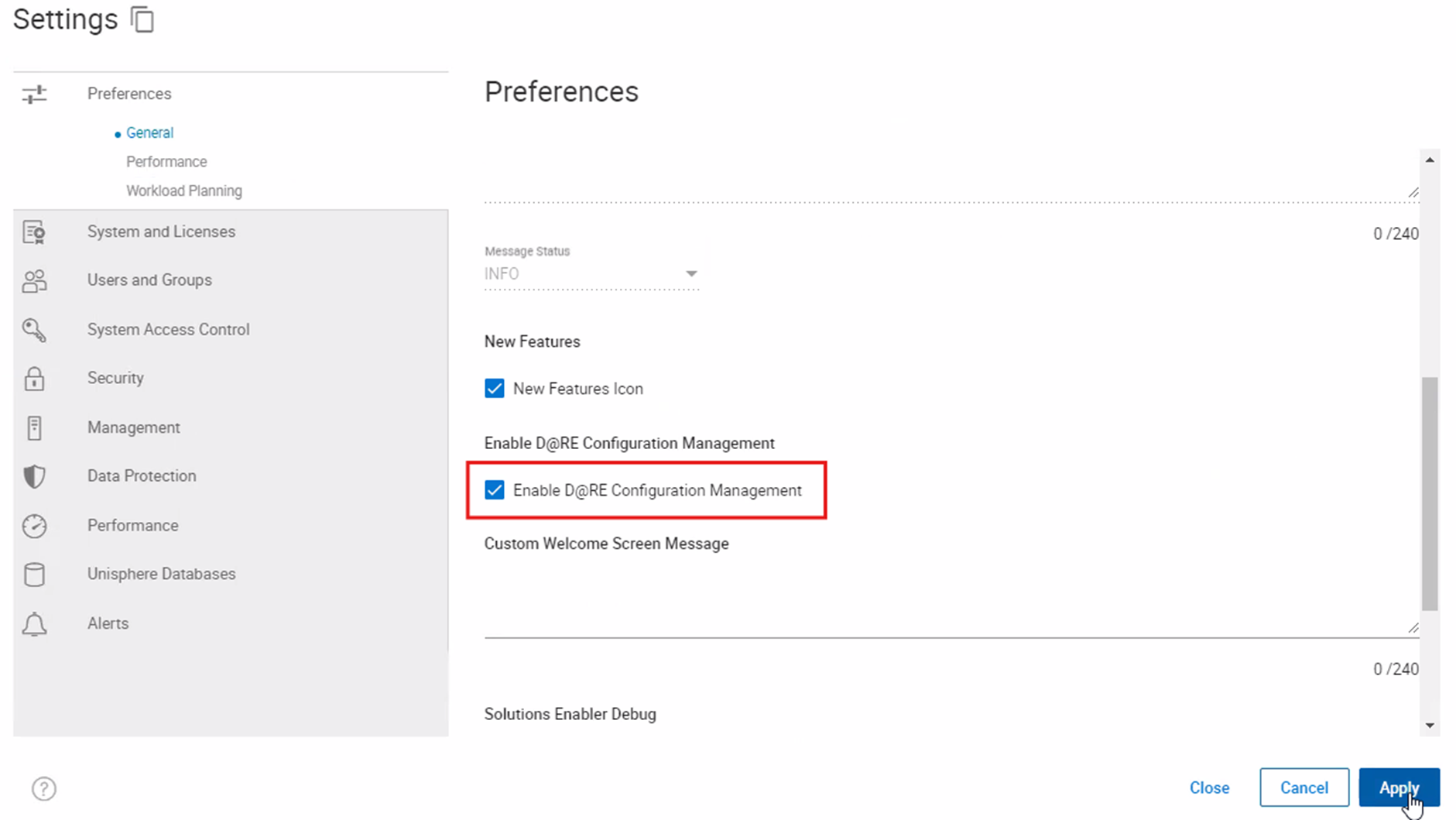
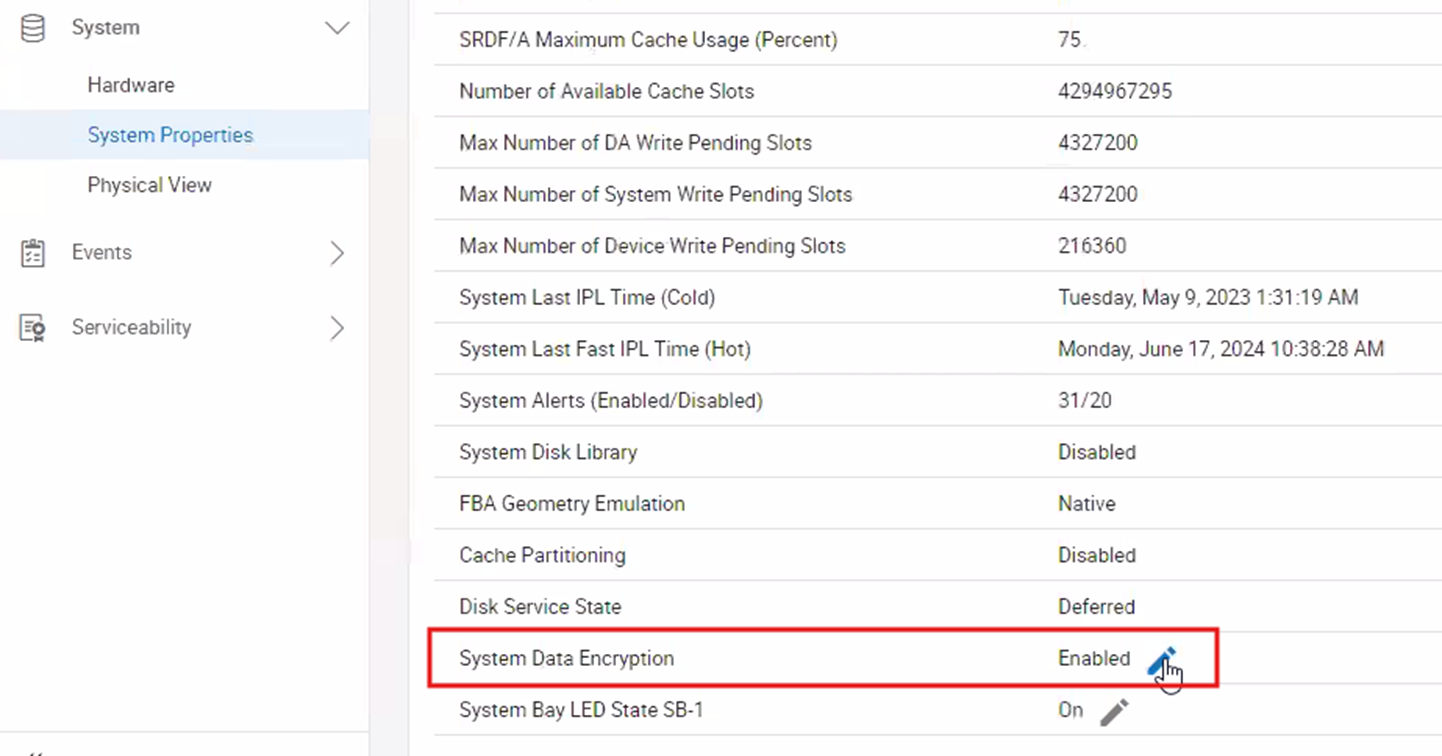
Using Unisphere to renew the SSL-Certificates used by the external D@RE-Server, we must first enable that option in the Unisphere settings, otherwise the pencil icon in the next step is missing.
-
Go to Unisphere for PowerMax Settings > Preferences > General and Enable D@RE Configuration Management
-
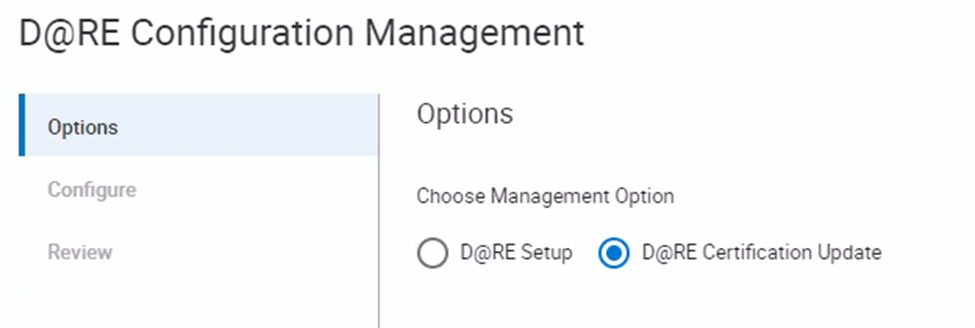
From the left panel of Unisphere, go to System > System Properties and click the pencil icon next to "System Data Encryption" to open the D@RE Configuration Management wizard.
-
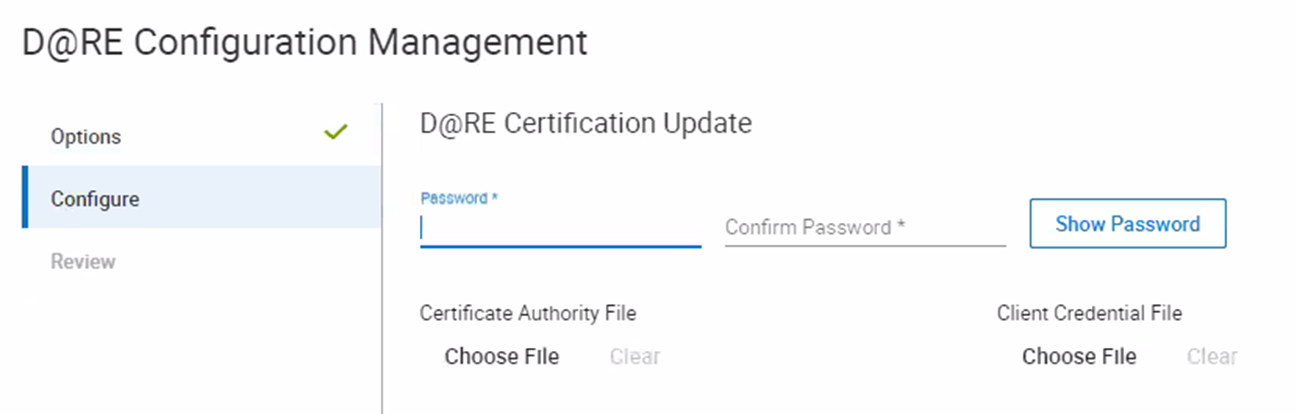
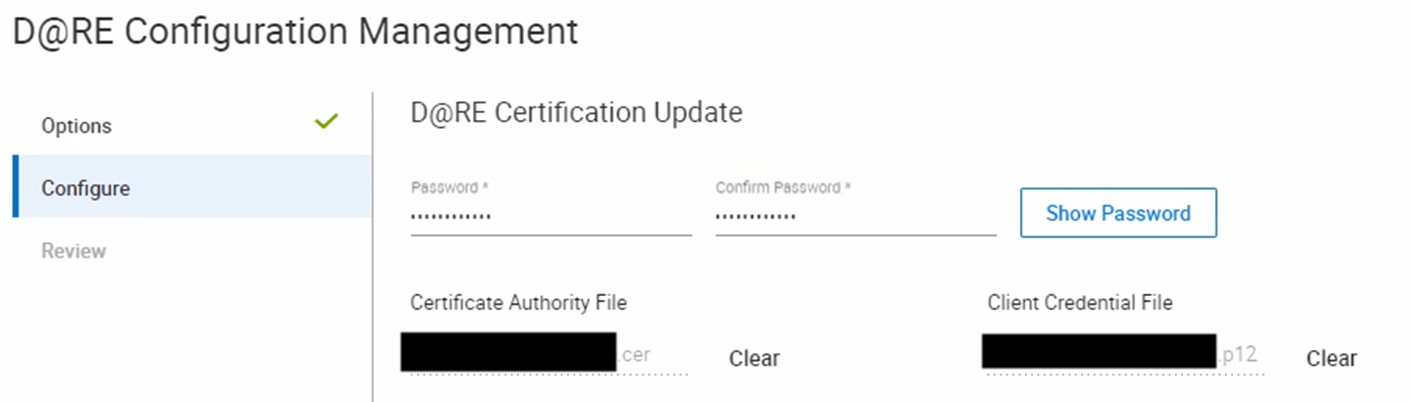
Enter the Passphrase
-
Then Choose or Upload the certificates
-
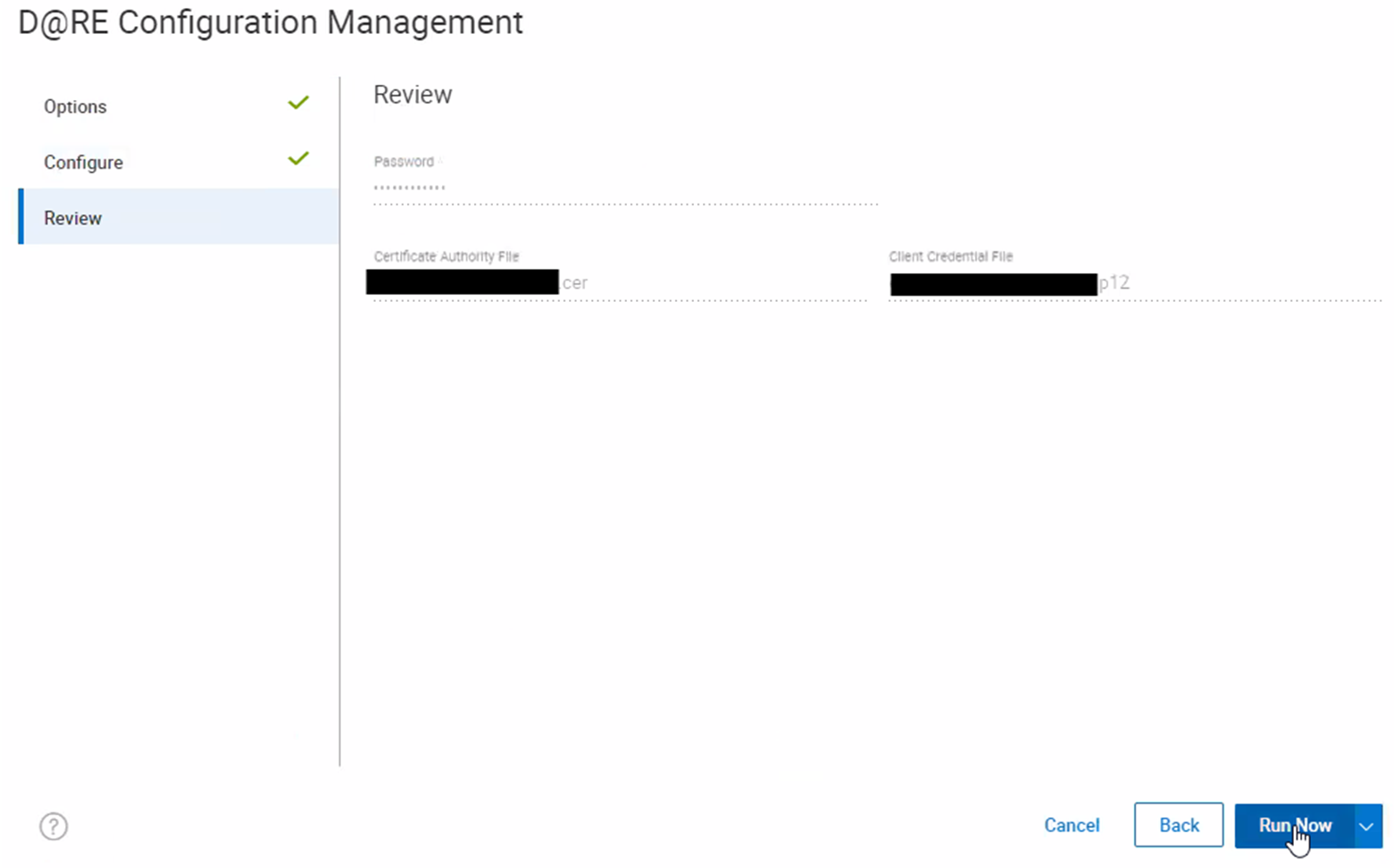
Go to the next page and Click Run Now
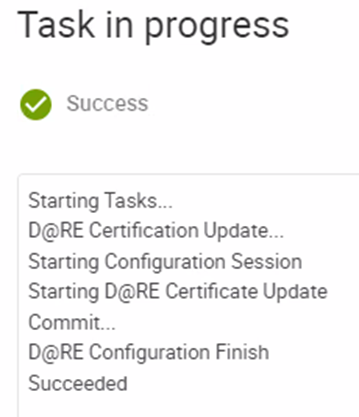
Note that "Run Now" does NOT activate the renewed certificates. A subsequent Simplified SymmWin Script must be run by the Dell VMAX/ PowerMax Support. See "Dell EMC PowerMax, VMAX All Flash and VMAX3 Family Data at Rest Encryption with Gemalto SafeNet KeySecure Deployment Guide": Once the information is entered into Unisphere, it is sent to the array MMCS/CS in an encrypted file. There, Dell Technologies personnel run the RE-ENROLL KTP CLIENT WITH SERVER script. The script verifies that the information is entered and proceeds with the process. Loading certificates and authentication information can be performed in advance before scheduling any script activity from Dell Technologies.
Raise a case with VMAX/PowerMax support and quote this KB to complete the procedure. The remaining steps are mentioned in the internal section of the KB.
Affected Products
PowerMax, PowerMax, PowerMax 2000, PowerMax 8000, PowerMaxOS 5978, Unisphere for PowerMaxArticle Properties
Article Number: 000197495
Article Type: How To
Last Modified: 10 Sep 2024
Version: 3
Find answers to your questions from other Dell users
Support Services
Check if your device is covered by Support Services.