SRM 4.6: SRM upgrade UI shows a message "Some components might not have been upgraded properly…"
Summary: SRM upgrade UI shows error message "Some components might not have been upgraded properly due to errors being encountered during the process. Retrieve logs" The upgrade UI when attempting to upgrade then gets stuck at the message "Please wait while the application is exiting… Once the exit is complete, you will be redirected to the SolutionPacks UI in order to proceed with their upgrade" ...
This article applies to
This article does not apply to
This article is not tied to any specific product.
Not all product versions are identified in this article.
Symptoms

Frontend logs show an error message:-
Client received SOAP Fault from server: couldn't get any response from the process in 600000ms... Please see the server log to find more detail regarding exact cause of the failure.
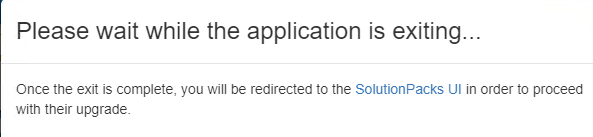
After attempting to exit from the maintenance mode, the UI then shows the message:
Please wait while the application is exiting... Once the exit is complete, you will be redirected to the SolutionPacks UI in order to proceed with their upgrade
Cause
Communication issue between the frontend host and the other SRM hosts that are upgraded.
Resolution
In one environment where this issue was encountered, it was identified to be a non-issue. The following steps were followed to confirm the same.
- For any server which shows error in the upgrade UI, SSH to the host and browse to the directory /opt/APG/Tools/Update-Manager/X.x/logs (where X.x is the version number on the host)
- Review the file "core-update.log" to confirm if any module update failed
- Then review the file "update.status." This file shows that all modules attempted and how many of them were successful and if there was any failure. For example:
"modules":{"success":5,"error":0,"total":5}If all modules show success then the upgrade was successful on that host. The UI communicates through webservice gateway and at times due to network-related issues, the frontend host does not get the update. This is the manual verification that updates on the host is complete. - If the UI does not exit and is stuck at the message that it is exiting for a longer time, then SSH to the frontend host and stop all services using the following command:
/opt/APG/bin/manage-modules.sh service stop all
- Ensure that no SRM service is running using the following command:
ps -ef | grep java
- If any service is found in step 5, check its process ID (PID) and kill the process using the following command where PID is the process ID of any process running when all SRM services are down.
kill -9 PID
- Then start all services back up using the following command:
/opt/APG/bin/manage-modules.sh service start all
- Then proceed with the upgrade steps using the upgrade guide to update the solution pack blocks
Article Properties
Article Number: 000193511
Article Type: Solution
Last Modified: 17 Jul 2025
Version: 4
Find answers to your questions from other Dell users
Support Services
Check if your device is covered by Support Services.