VNX Family: How To add a HLU 0 to the storage group (User Correctable)
Summary: It is recommended to create a HLU 0 for each storage group to prevent LUNz devices on the host.
This article applies to
This article does not apply to
This article is not tied to any specific product.
Not all product versions are identified in this article.
Instructions
There are two ways that a HLU 0 can be created:
1. Create a new LUN and then follow the steps below to add it to the storage group as HLU 0. This is the non-disruptive option.
2. Remove a current LUN from the storage group and then add it back following the steps below to add it to the storage group as HLU 0. This is a disruptive option as hosts will lose access to the LUN when it is removed from the storage group, until it is added back.
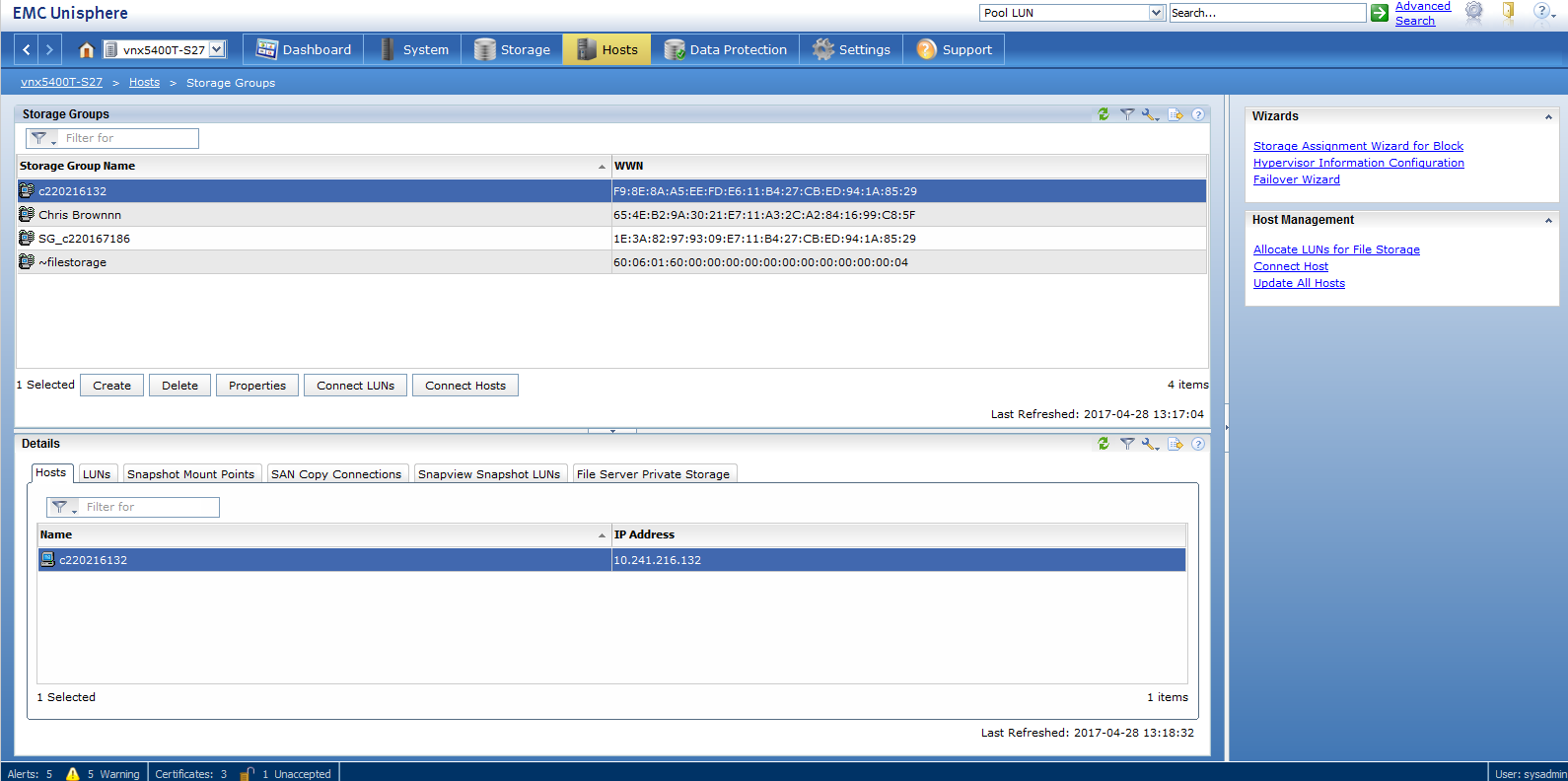
Under hosts>storage group in Unisphere
-Highlight the storage group name that you wish to add the LUN to
-Click connect LUNs
-On the storage group properties dialogue box find the LUN that you are adding to the storage group in the top panel.
-Click add
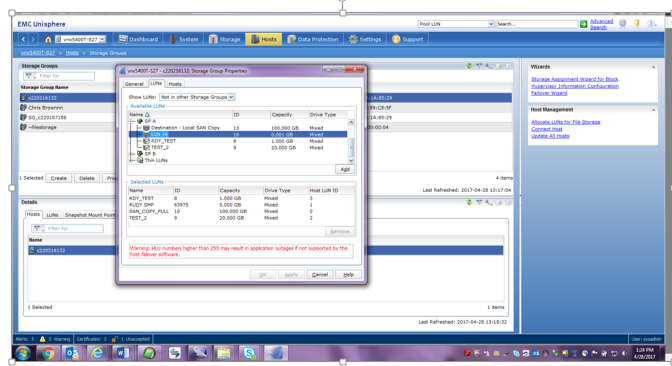
-After adding the LUN it will then appear on the bottom panel.
-Click on the Host LUN ID of that LUN and a drop down will appear so you will be able to change it to HLU 0
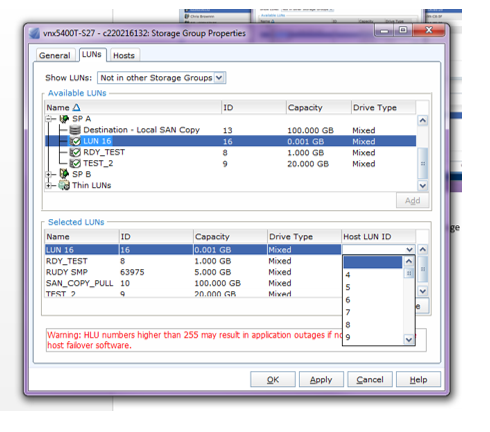
-Click apply
1. Create a new LUN and then follow the steps below to add it to the storage group as HLU 0. This is the non-disruptive option.
2. Remove a current LUN from the storage group and then add it back following the steps below to add it to the storage group as HLU 0. This is a disruptive option as hosts will lose access to the LUN when it is removed from the storage group, until it is added back.
Under hosts>storage group in Unisphere
-Highlight the storage group name that you wish to add the LUN to
-Click connect LUNs
-On the storage group properties dialogue box find the LUN that you are adding to the storage group in the top panel.
-Click add
-After adding the LUN it will then appear on the bottom panel.
-Click on the Host LUN ID of that LUN and a drop down will appear so you will be able to change it to HLU 0
-Click apply
Affected Products
VNX/VNXeProducts
VNX/VNXeArticle Properties
Article Number: 000022730
Article Type: How To
Last Modified: 17 Apr 2026
Version: 4
Find answers to your questions from other Dell users
Support Services
Check if your device is covered by Support Services.