How to Identify the Dell BitLocker Manager Version
Resumen: Learn about how to identify the version of Dell BitLocker Manager or Dell Data Protection BitLocker Manager by following these instructions.
Este artículo se aplica a
Este artículo no se aplica a
Este artículo no está vinculado a ningún producto específico.
No se identifican todas las versiones del producto en este artículo.
Instrucciones
Knowing the version of Dell BitLocker Manager (formerly Dell Data Protection BitLocker Manager) helps you to:
- Identify known issues
- Determine UI differences
- Understand workflow changes
- Verify system requirements
Affected Products:
- Dell BitLocker Manager
- Dell Data Protection BitLocker Manager
Affect Operating Systems:
- Windows
Versioning can be determined either through the product user interface (UI) or through the product Installer. Click the appropriate option for more information.
UI
Note: Dell BitLocker Manager or Dell Data Protection BitLocker Manager must be installed before identifying the version through the UI.
- Log in to the Windows computer.
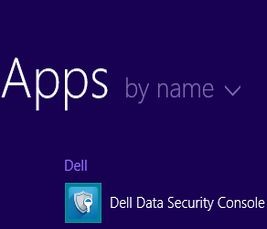
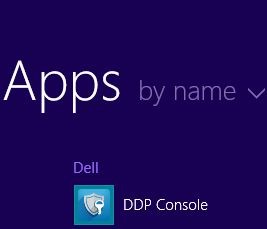
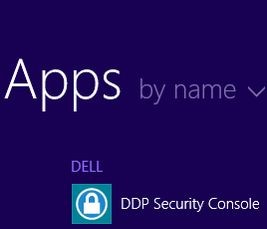
- On the Windows desktop, double-click the <PRODUCT> Console. Depending on the version that is installed, one of three icons is seen:
- v8.15.0 and Later: Dell Data Security Console
- v8.5.0 to 8.13.0: DDP Console
- v8.0.0 to 8.4.0: DDP Security Console
Note:- <PRODUCT> = The variable name of the console that differs depending on the version that is installed
- Alternatively, the <PRODUCT> Console can be accessed using Windows Explorer at:
- v8.5.0 and later:
%SYSTEMDRIVE%\Program Files\Dell\Dell Data Protection\Security Tools\Dell.SecurityFramework.Console.exe - v8.0.0 to 8.4.0:
%SYSTEMDRIVE%\Program Files\Dell\Dell Data Protection\Security Tools\Dell.SecurityManager.SystrayApp.exe
- v8.5.0 and later:
- In the example,
%SYSTEMDRIVE%is a Windows system variable for the operating system partition drive.
- v8.15.0 and Later: Dell Data Security Console
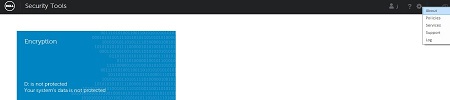
- In the upper-right corner of the <PRODUCT> Console, click the gear icon and then select About. The UI varies slightly based on the version that is installed.
- v8.5.0 to 8.13.0: Dell Encryption Enterprise UI

- v8.5.0 to 8.13.0: Security Tools UI
- v8.0.0 to 8.4.0: Security Console UI
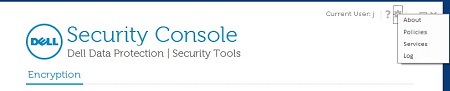
- v8.5.0 to 8.13.0: Dell Encryption Enterprise UI
- In the About menu, click Show Info for additional product details. The UI varies slightly based on the version that is installed.
- v8.5.0 and Later: Dell Data Protection Encryption UI
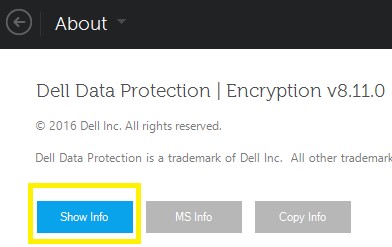
- v8.0.0 to 8.4.1: Security Console UI
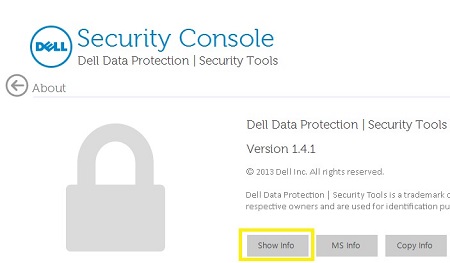
- v8.5.0 and Later: Dell Data Protection Encryption UI
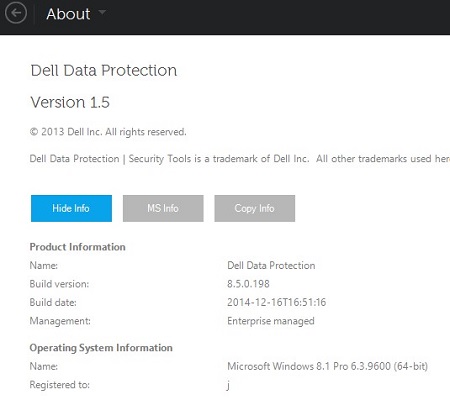
- Record the listed version.
- v8.15.0 and Later: Dell Encryption Enterprise UI
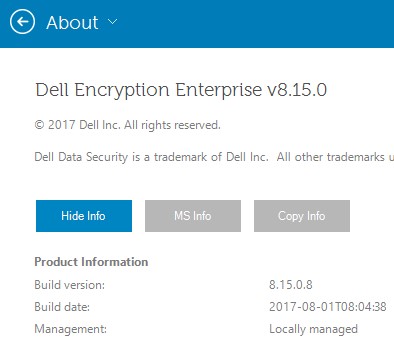
- v8.5.0 to 8.13.0: Dell Data Protection UI
- v8.0.0 to 8.4.0: Security Console UI
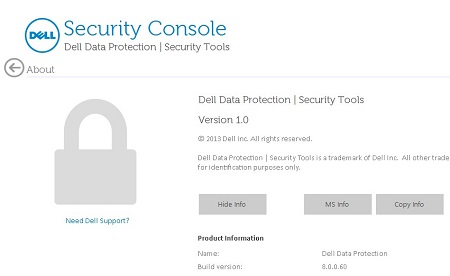
Note: The Build version may differ from the above screenshot. - v8.15.0 and Later: Dell Encryption Enterprise UI
Installer
Note: For information about downloading the installer, reference How to Download Dell Encryption Enterprise or Dell Encryption Personal.
- Extract the child installers from the Dell Data Security (formerly Dell Data Protection) Master Installer.
Note: Reference How to Extract Child Installers from the Dell Data Security Master Installer for more information.
- In the extracted master installer path (Step 1), locate
EMAgent_<BITDEPTH>_setup.exeat either:- v8.15 and later:
<EXTRACTEDPATH>\Encryption Management Agent\EMAgent_<BITDEPTH>_setup.exe - v8.0 to 8.14.X:
<EXTRACTEDPATH>\Security Tools\EMAgent_<BITDEPTH>_setup.exe
Note:<BITDEPTH>= The bit depth of the file<EXTRACTEDPATH>= The full extracted path of the file
- v8.15 and later:
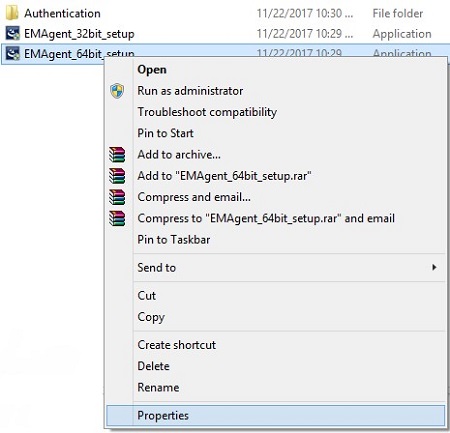
- Right-click
EMAgent_<BITDEPTH>_setup.exeand then select Properties.
- Click the Details tab.
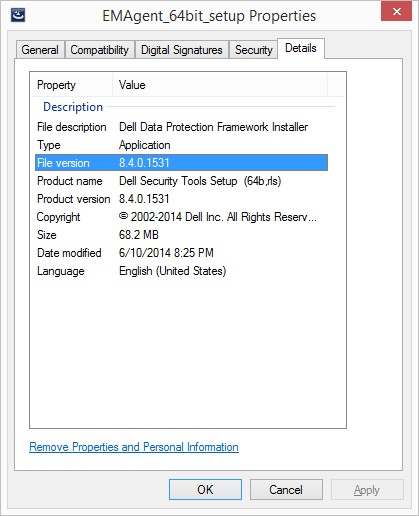
- Record the first three numbers of File version. In the example, 8.4.0 are the first three numbers.
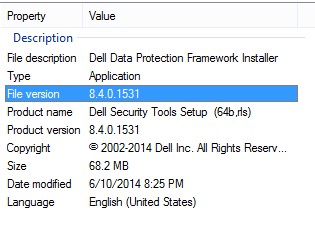 Note: The File version may differ from the above screenshot.
To contact support, reference Dell Data Security International Support Phone Numbers.
Go to TechDirect to generate a technical support request online.
For additional insights and resources, join the Dell Security Community Forum.
Productos afectados
Dell EncryptionPropiedades del artículo
Número del artículo: 000123784
Tipo de artículo: How To
Última modificación: 19 Apr 2026
Versión: 13
Encuentre respuestas a sus preguntas de otros usuarios de Dell
Servicios de soporte
Compruebe si el dispositivo está cubierto por los servicios de soporte.