Bluetooth 절전 설정으로 인해 연결 문제가 발생함
Summary: 이 문서에서는 Windows 11에서 Bluetooth 디바이스의 연결이 간헐적으로 끊어지는 문제를 해결하는 방법을 설명합니다.
This article applies to
This article does not apply to
This article is not tied to any specific product.
Not all product versions are identified in this article.
Instructions
Bluetooth 디바이스와 Windows 컴퓨터의 연결이 임의로 끊어집니다.
Bluetooth 장치가 Windows 컴퓨터에서 임의로 연결 해제되는 경우 Windows 전원 관리 저장 기능 때문일 수 있습니다.
Windows 전원 관리 저장 기능을 끄면 문제가 해결될 수 있습니다.
Windows 11에서 Bluetooth 전원 관리 설정 변경
- Windows 아이콘을 마우스 오른쪽 버튼으로 클릭하고 장치 관리자를 선택합니다.
- Bluetooth 왼쪽에 있는 화살표를 클릭하여 섹션을 엽니다.
- Bluetooth Adapter를 마우스 오른쪽 버튼으로 클릭하고 Properties를 선택합니다(그림 1).
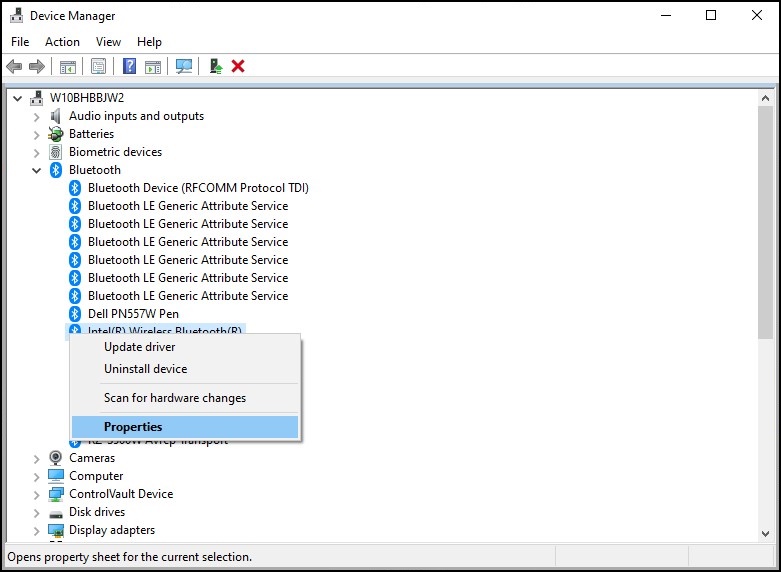
그림 1: Bluetooth 디바이스 창 - Bluetooth 어댑터 창(그림 2)이 열립니다. 전원 관리 탭으로 이동하여 "전원을 절약하기 위해 컴퓨터가 이 장치를 끌 수 있음" 옆의 확인란이 선택 해제되어 있는지 확인합니다.
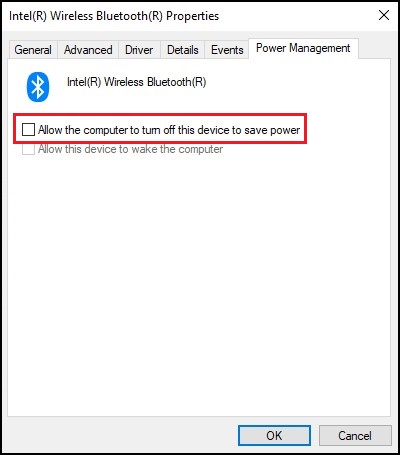
그림 2: Bluetooth 디바이스 속성 창 - OK를 클릭합니다.
Bluetooth 장치에 연결 문제가 계속 있는 경우 Bluetooth가 작동하지 않음?의 정보를 사용하십시오. 페어링 및 탐지 문제 해결 라이브러리 페이지.
Additional Information
Affected Products
Alienware, Dell All-in-One, Dell Pro All-in-One, Dell Pro Max Micro, Dell Pro Max Slim, Dell Pro Max Tower, Dell Pro Micro, Dell Pro Slim, Dell Pro Tower, Dell Slim, Dell Tower, Inspiron, Legacy Desktop Models, OptiPlex, Vostro, XPS, G Series
, G Series, Alienware, Dell Plus, Dell Pro, Dell Pro Max, Dell Pro Plus, Dell Pro Premium, Inspiron, Latitude, Dell Pro Rugged, Vostro, XPS, Legacy Laptop Models, Fixed Workstations, Mobile Workstations, Dell Pro Max Micro XE FCM2250, Dell Pro Max Slim XE FCS1250, Dell Pro Max Tower T2 XE FCT2250, Dell Pro Micro Plus XE QBM1250, Dell Pro Slim Plus XE5 QBS1250, Dell Pro Tower Plus XE5 QBT1250
...
Article Properties
Article Number: 000122996
Article Type: How To
Last Modified: 13 May 2026
Version: 15
Find answers to your questions from other Dell users
Support Services
Check if your device is covered by Support Services.