Dell Pro Stereo Headset WH3022 Usage and Troubleshooting Guide
Summary: The following article provides information about the Dell WH3022 Pro Stereo Headset. You can reference each section to learn more about the features of the Dell WH3022 Pro Stereo Headset and how to use it. ...
Instructions
Table of Contents:
- What's in the Dell WH3022 Pro Stereo Headset box?
- Pro Stereo Headset Features
- Setting up your Pro Stereo Headset
- Taking a call on your Pro Stereo Headset
- Troubleshooting
- Additional Information
Experience great audio clarity with this Teams certified wired headset that provides convenient call controls at your fingertips.
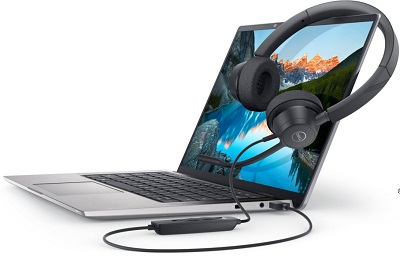
(Figure.1 Work faster and easier with the Dell WH3022 Pro Stereo Headset)
What's in the Dell WH3022 Pro Stereo Headset box?
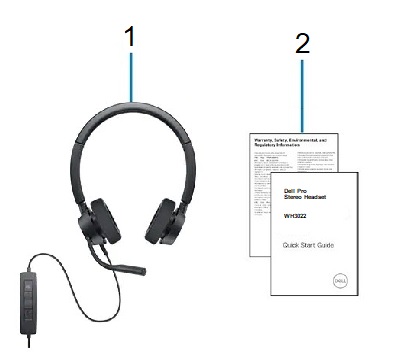
(Figure.2 Dell WH3022 Pro Stereo Headset Box Contents)
| 1 | Pro Stereo Headset | 2 | Documents |
Pro Stereo Headset Features
Top View
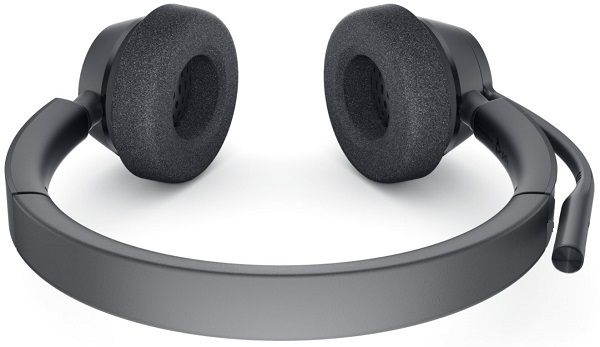
(Figure.3 Dell WH3022 Pro Stereo Headset Top View)
Left-Hand Side View
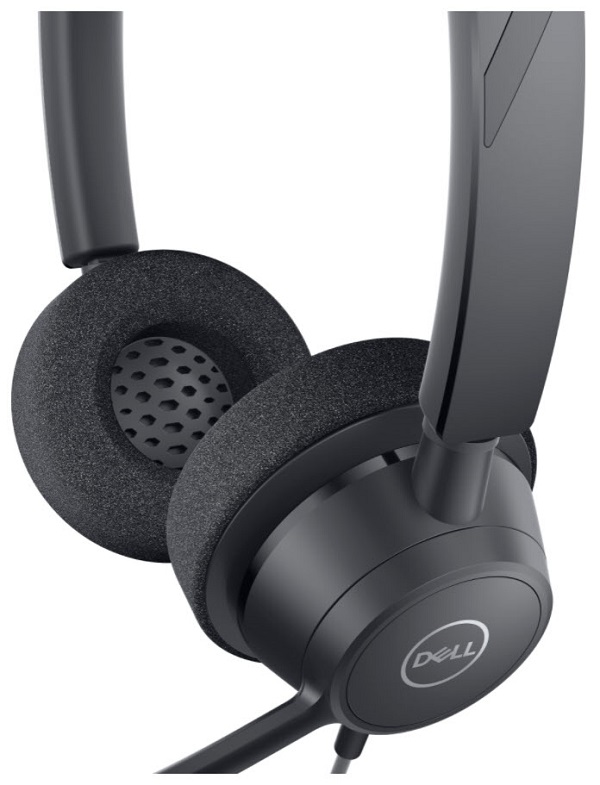
(Figure.4 Dell WH3022 Pro Stereo Headset Left-Hand Side View)
Product Features
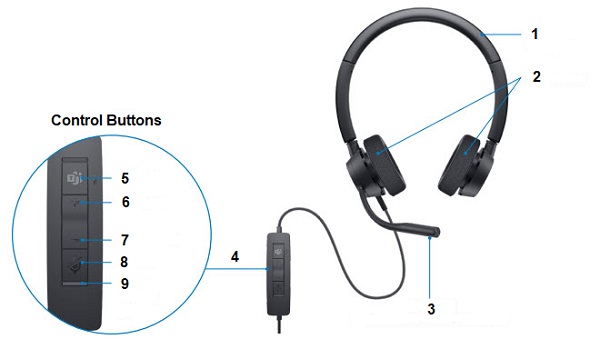
(Figure.5 Dell WH3022 Pro Stereo Headset Product Features)
| 1 | Adjustable Headband | 2 | Ear Cushions |
| 3 | Boom Microphone | 4 |
|
Control Functions
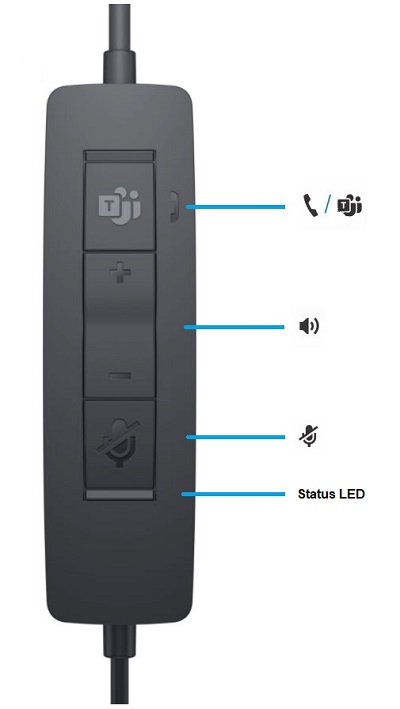
(Figure.6 Controls)
Standard LEDs
| Icon | Inline Controls | LEDs | What they mean |
|---|---|---|---|
 |
Call Button | Flashing Green | Incoming Call |
| Solid Green | On a Call | ||
| Slowly Flashing Green | Call on Hold | ||
 |
Volume Up Button | Increases the listening volume | |
 |
Volume Down Button | Decreases the listening volume | |
 |
Mute Button | Solid Red | Headset muted |
Microsoft Teams LEDs
| Icon | Inline Controls | LEDs | What they mean |
|---|---|---|---|
 |
Call Button | Solid Purple | Incoming Call |
| Flashing Purple x 3 | Microsoft Teams failed to connect | ||
| Flashing Blue | Incoming Call | ||
| Solid Blue | On a Call | ||
| Slow Flashing Blue | Call on Hold | ||
| Pulsing Purple | Microsoft Teams Notification | ||
 |
Volume Up Button | Increases the listening volume | |
 |
Volume Down Button | Decreases the listening volume | |
 |
Mute Button | Solid Red | Headset muted |
Setting up your Pro Stereo Headset
Compatibility
Operating Systems:
-
Windows 10, and Mac
Connecting the Pro Stereo Headset
The Dell WH3022 Pro Stereo Headset uses a USB Type-A connector to connect to your Desktop or Laptop computer.
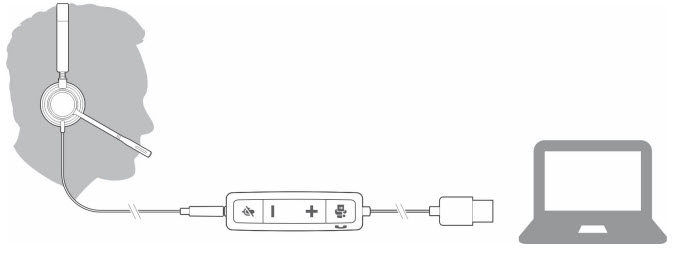
(Figure.7 USB Type-A Connector)
Some softphones require the installation of Plantronics Hub for Windows, and Mac to enable the headset call control functionality.
You can download the Plantronics Hub software for Windows, or Mac by visiting poly.com/software  or go to www.dell.com/support.
You need to manage your headset settings on your computer using the Plantronics Hub:
- Call control for softphones
- Change headset language
- Update firmware
- Turn features on and off
Taking a call on your Pro Stereo Headset
How to Make, Take, or End a call
- When making a call, you tap the Call
 button and use softphone to dial your number.
 - To take an incoming call, or to disconnect your call, you tap the Call
 button.
How to Redial
- To redial a number, simply double-tap the Call
 button.
How to put a call on Hold
- To put a call on hold, simply press and hold the Call
 button until you hear a beep or voice prompt.
How to adjust the Volume
- To adjust the listening volume, then you need to press up or down on the volume
 button, until you get your desired volume.
 - You can also use the volume on your computer to affect the volume heard over the headset.
- Your version of softphone may contain its own volume setting controls.
- To mute a call you need to briefly press the mute
 button. To unmute, you press the mute
  button again.
Troubleshooting
| Problems | Possible solutions |
|---|---|
| I cannot hear anything. |
|
| People calling me cannot hear anything. |
|
| The sound in my headset is distorted or I can hear and echo. |
|
| The headset control buttons do not work when I use softphone. |
|
| The other headphones I have connected do not work now. |
|
| My phone does not find the headset during a call or while listening to music. |
|

Additional Information
Additional Information
Dell Pro Stereo Headset troubleshooting knowledge base for audio devices
Learn how to use and troubleshoot problems with the Headset that you use with your computer. You can find information about Troubleshooting steps, How-To guides, and relevant Support Videos for assistance.
For the Dell WH3022 Pro Stereo Headset User Guide, browse to the Dell WH3022 Pro Stereo Headset Online Manual Page. Touch or click View PDF to the right of Pro Stereo Headset User Guide, which is in the Manuals and Documents section.