如何排程 Dell Data Security 伺服器的受管理報告
Summary: 瞭解如何依照下列指示,在 Dell Data Security Server 和 Dell Data Security Server Virtual 上排程受管理報告。
This article applies to
This article does not apply to
This article is not tied to any specific product.
Not all product versions are identified in this article.
Instructions
系統管理員可排程受管理報告以傳送至 Dell Data Security servers (Dell Security Management Server 或 Dell Security Management Server Virtual) 的電子郵件收件者清單。
受影響的產品:
- Dell Security Management Server
- Dell Security Management Server Virtual
受影響的版本:
- 版本 10.1.0 及更新版本
可將新增或現有受管理報告排程以傳送至一或多個電子郵件地址。如需詳細資訊,請按一下適當的工作。
注意:
- 電子郵件通知需要在 Dell Data Security 伺服器上設定 SMTP 設定。
- 如需詳細資訊,請參閱如何為 Dell Data Security 伺服器設定 SMTP 設定。
新增
- 登入 Dell Data Security 管理主控台。
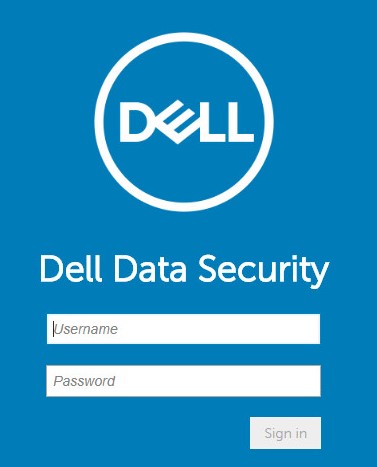 注意:如需詳細資訊,請參閱 如何存取 Dell Data Security Server 管理主控台。
 - 在左側功能表窗格中,按一下報告,然後按一下管理報告。
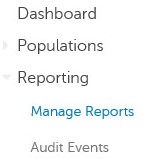
- 按一下建立新報告下拉式清單,然後選取適當的報告。

- 視情況變更預設報告篩選條件。完成後,按一下另存新檔。

- 在 「報告 - 另存新檔 」功能表中:
- 填入報告名稱。
- 填入描述名稱。
- 或者,選取 私人。
- 按一下儲存。
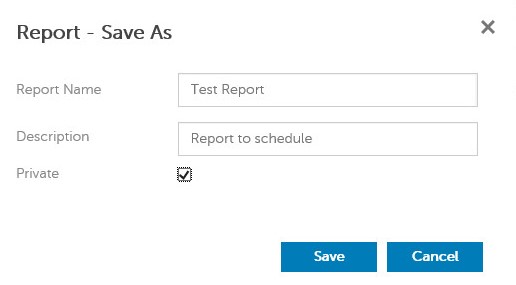 注意:只有擁有者和報告系統管理員能夠檢視私人報告。
 - 按一下排程。

- 按一下新增排程。

- 從 新增網域 功能表:
- 填入電子郵件以接收報告。
- 選取要執行報告的排程。
- 選取要執行的時間 。
- 選取地區。
- 按一下儲存。
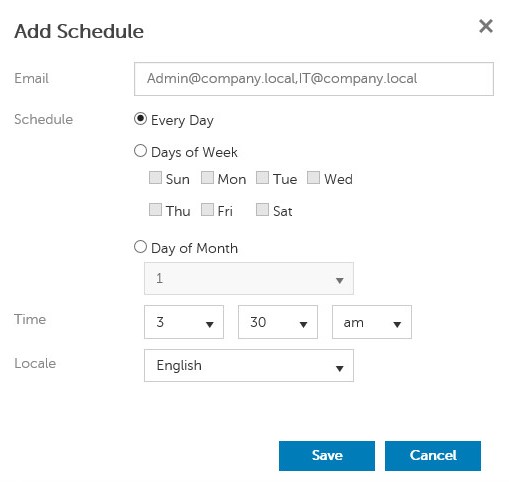 注意:用逗號分隔多個電子郵件位址。
現有
- 登入 Dell Data Security 管理主控台。
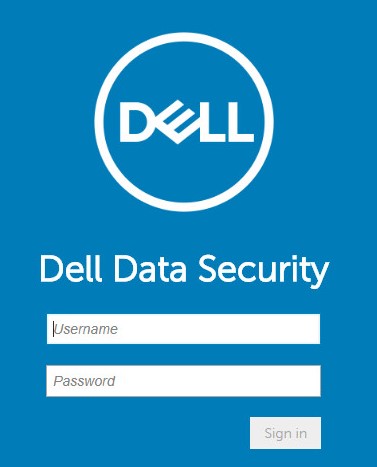 注意:如需詳細資訊,請參閱 如何存取 Dell Data Security Server 管理主控台。
 - 在左側功能表窗格中,按一下報告,然後按一下管理報告。
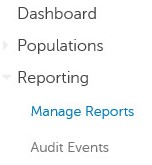
- 選擇要排程的報告。
 注意:您環境中的報告資訊 (名稱、 說明和 報告類型) 可能會有所不同。
 - 按一下排程。

- 按一下新增排程。

- 從 新增網域 功能表:
- 填入電子郵件以接收報告。
- 選取要執行報告的排程。
- 選取要執行的時間 。
- 選取地區。
- 按一下儲存。
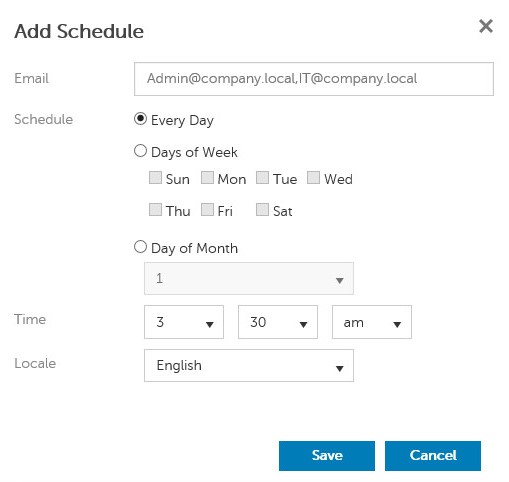 注意:用逗號分隔多個電子郵件位址。
如要聯絡支援部門,請參閱 Dell Data Security 國際支援電話號碼。
請前往 TechDirect,以線上產生技術支援要求。
如需更多深入見解與資源,請加入 Dell 安全性社群論壇。
Affected Products
Dell EncryptionArticle Properties
Article Number: 000125166
Article Type: How To
Last Modified: 19 Jun 2026
Version: 9
Find answers to your questions from other Dell users
Support Services
Check if your device is covered by Support Services.