PowerProtect Data Protection Appliance,IDPA:保護儲存裝置升級程序
Summary: 本文提供手動將 Integrated Data Protection Appliance (IDPA) Protection Storage (Data Domain) 元件升級至最新核准版本的程序。
This article applies to
This article does not apply to
This article is not tied to any specific product.
Not all product versions are identified in this article.
Instructions
升級 IDPA 內保護儲存裝置 (DD) 的程序:
建議只有已經是最新 IDPA 版本的裝置才遵循此程序,並且升級會獲得核准,如文章 IDPA 中所示:允許的點產品升級。
- 下載在允許的點產品升級文章中核准的 Data Domain 作業系統版本, 升級 RPM 套裝 Data Domain 的 Dell 支援網站 (需要以已註冊的 Dell 支援使用者身分登入才能檢視此文件)
Verify the MD5 or SHA256 checksum for the file you download.- 請確定 Avamar伺服器上沒有執行中的備份。以 系統管理員 身分登入,並停用排程器和維護:
dpnctl stop sched,maint- 使用您的憑證登入 ACM 儀表板
- 使用 Protection Storage System Manager UI 連結登入 Data Domain (使用 sysadmin 和 通用密碼 登入資料)。
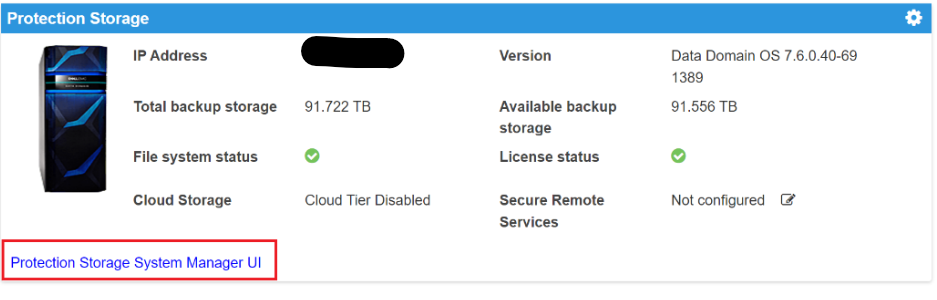
- 請確定 Data Domain 上沒有執行複寫工作。
- 使用 DD System Manager 的「維護>系統」功能表。
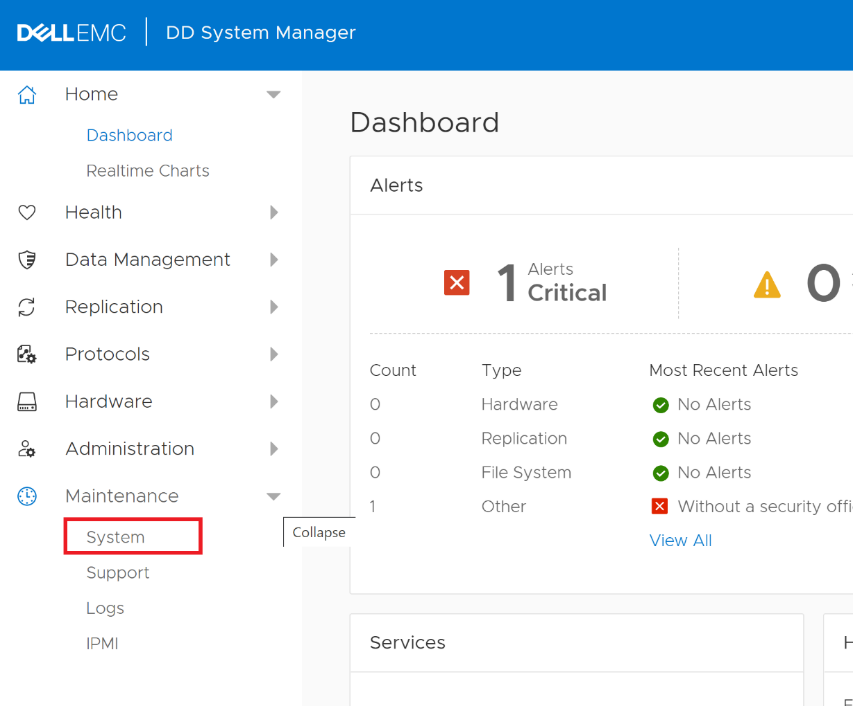
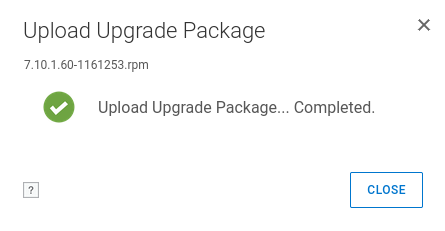
- 使用 「上傳升級套件」 按鈕上傳在步驟 1 中下載的套件。
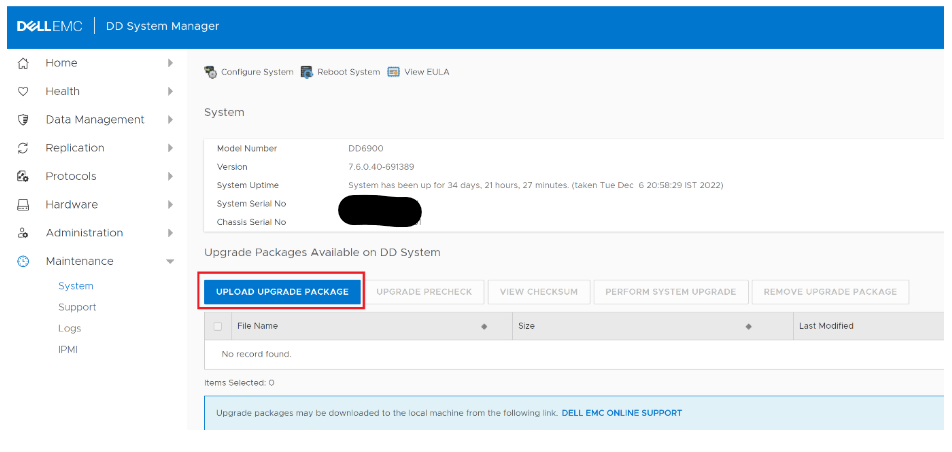
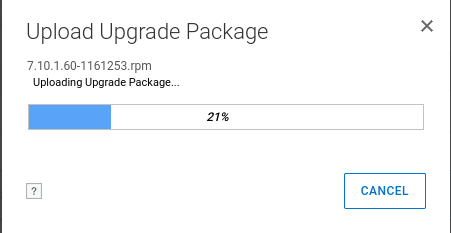
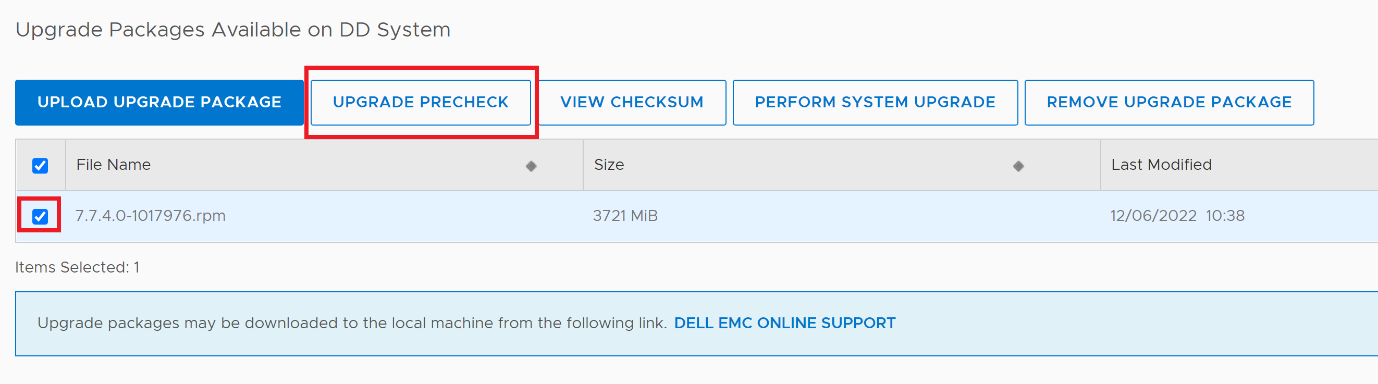
- 選取上傳的 RPM 套裝,然後按 一下升級預先檢查按鈕。
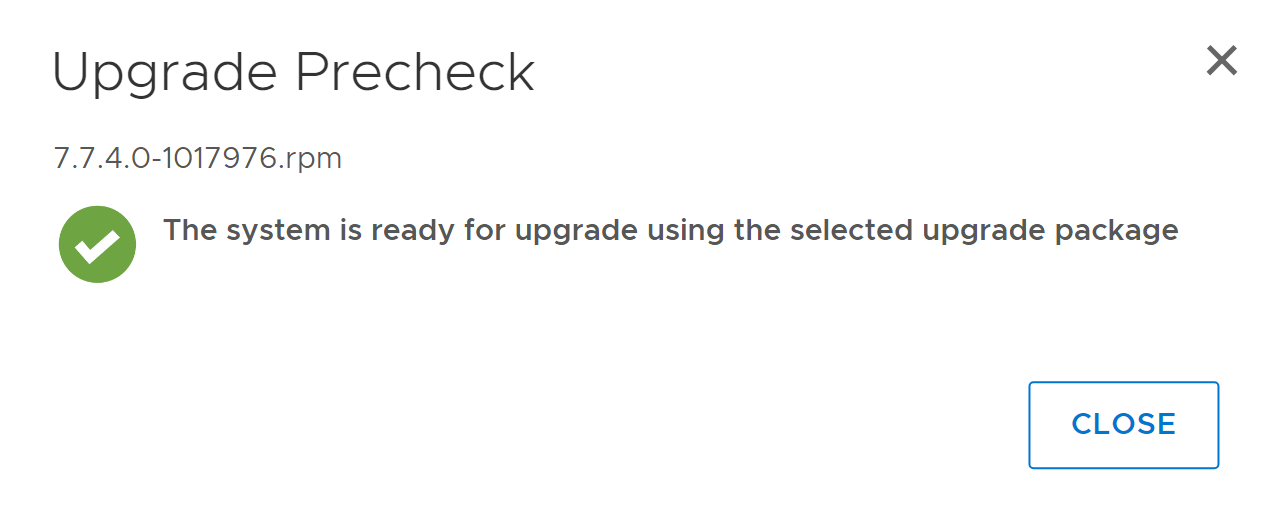
- 預先檢查成功後,會顯示對話方塊 (包含適當的版本)。如果預先檢查失敗,請聯絡 Dell 支援 以取得協助。
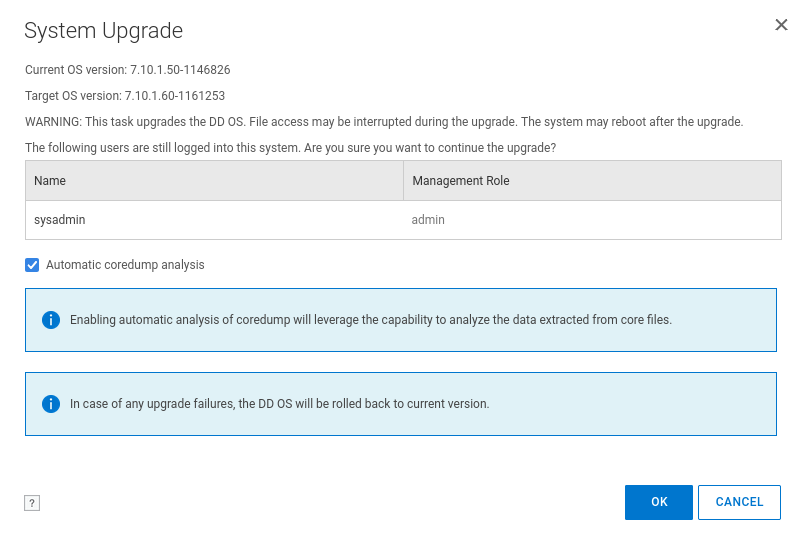
- 關閉對話方塊,然後選取要執行系統升級的套裝。按一下 確定 以繼續。
- 按一下 「確定 」按鈕後,會顯示 Data Domain 升級進度。升級分四個階段進行:
- 預檢查升級套裝
- 安裝升級軟體
- 重新啟動系統
- 完成升級
由於 Data Domain 正在此階段重新開機,因此可能需要重新整理網頁,不過應該自行重新整理。
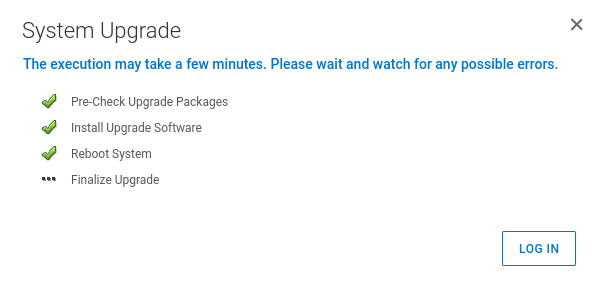
Data Domain 在重新開機後傳回後,即升級完成。新版本會顯示在 ACM 儀表板中。
- 重新啟動在步驟 2 中停止的 Avamar 排程器:
dpnctl start sched,maintAffected Products
Integrated Data Protection Appliance Family, Integrated Data Protection Appliance SoftwareArticle Properties
Article Number: 000206181
Article Type: How To
Last Modified: 14 May 2026
Version: 14
Find answers to your questions from other Dell users
Support Services
Check if your device is covered by Support Services.