Manage your account settings and preferences
Summary: Configuring your account settings and preferences ensures that you receive important alerts and notifications about your products. You can configure the frequency and the type of notifications that you want to receive from Dell Technologies. ...
Instructions
After you create an account at Create Your Account, you can configure the following:
-
User Settings
-
Manage Subscriptions (Formerly - Notifications and Alerts)
-
Custom groups
Navigation:
-
Log in to Dell Support Site.
-
From the top-right corner, click the person icon menu
 and select Preferences. Select the User Settings & Preferences tile to load the desired page.
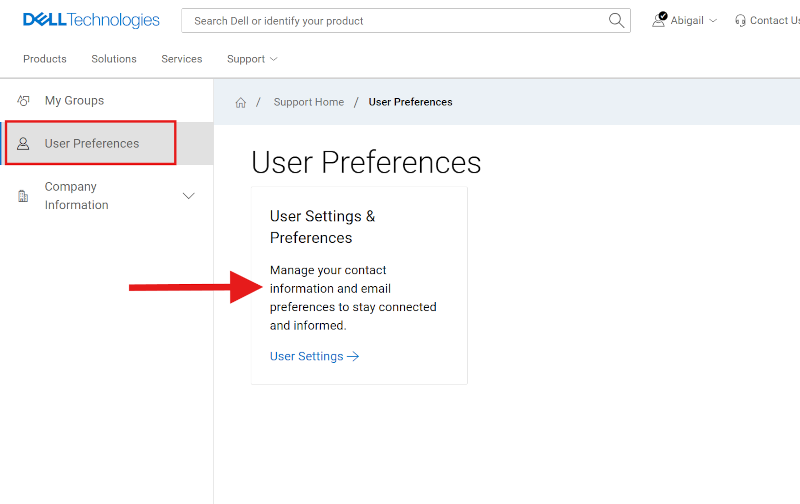
Figure 1: User Preferences
User Settings
Edit your personal information and configure your contact preferences such as preferred contact hours and initial mode of communication for service requests.
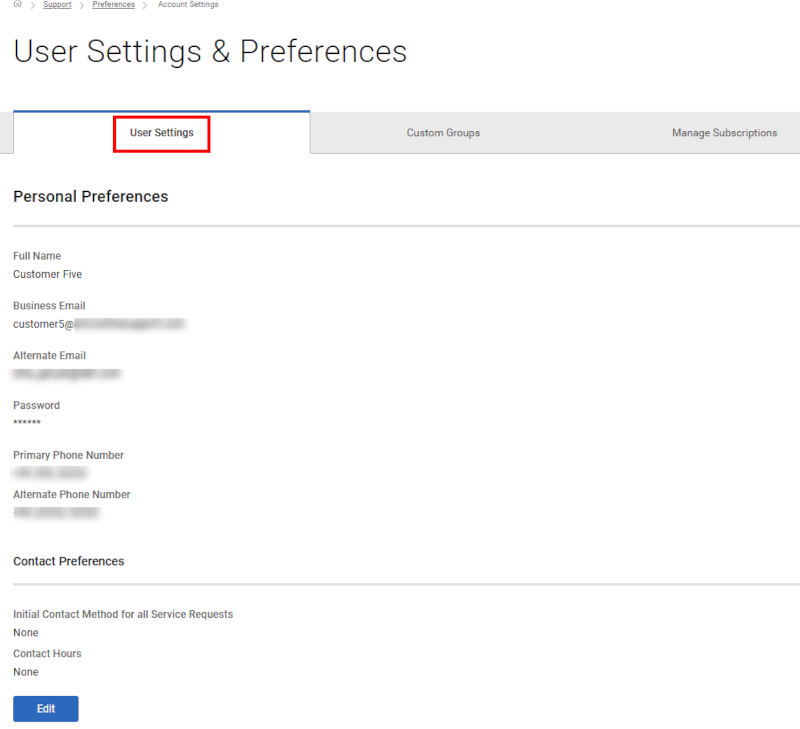
Figure 2: User Settings
To edit or configure your user settings, perform the following steps:
-
Log in to Dell Support Site.
-
From the top-right corner, click the person icon menu
 and select Preferences. Select the User Settings & Preferences tile to load the desired page.
 -
Check that you are on the User Settings tab.
-
Click Edit, make the required changes, and then click Save.
Manage Subscriptions
Dell Technologies sends email notifications about product updates, security and technical advisories, and service requests applicable for your products. You can configure the following:
-
Frequency for receiving notifications
-
Product type or group for which you want to receive notifications
-
Varying Service Request criteria for which you want to receive notifications
Configure product update notifications
Dell Technologies sends email notifications about new releases, downloads, and newsletters available for your products. Select a specific product for which you want to receive the notifications. You can also select the email address and frequency with which you want to receive these notifications.
-
Log in to Dell Support Site.
-
From the top-right corner, click the person icon menu
 and select Preferences. Select the User Settings & Preferences tile to load the desired page.
 -
Click the Manage Subscriptions tab and check that you are on the Product Subscriptions subtab.
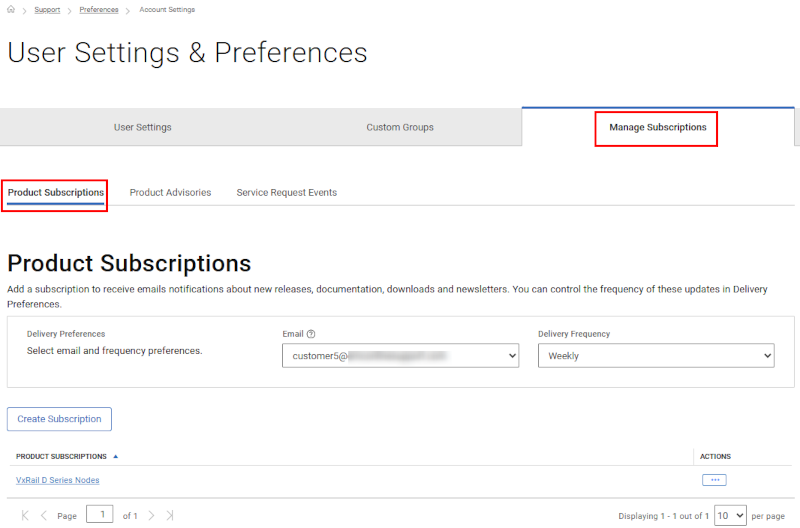
Figure 3: Product Updates -
Click Create Subscription.
-
Enter a product name and click Add Product. A notification is created.
-
In the Delivery Preferences pane, perform the following steps:
-
From the Email list, select the email address for receiving notifications.
-
-
From the Delivery Frequency list, select the frequency for receiving notifications.
.
Configure Product Advisories Notifications
Dell Technologies issues advisories for Dell products in order to notify its customers of critical issues and potential impacts to their environment. You can set up automated email notifications whenever a Dell security or technical advisory is issued or only when an advisory is issued for a specific product.
-
Log in to Dell Support Site.
-
From the top-right corner, click the person icon menu
 and select Preferences. Select the User Settings & Preferences tile to load the desired page.
 -
Click the Manage Subscriptions tab and click the Product Advisories subtab.
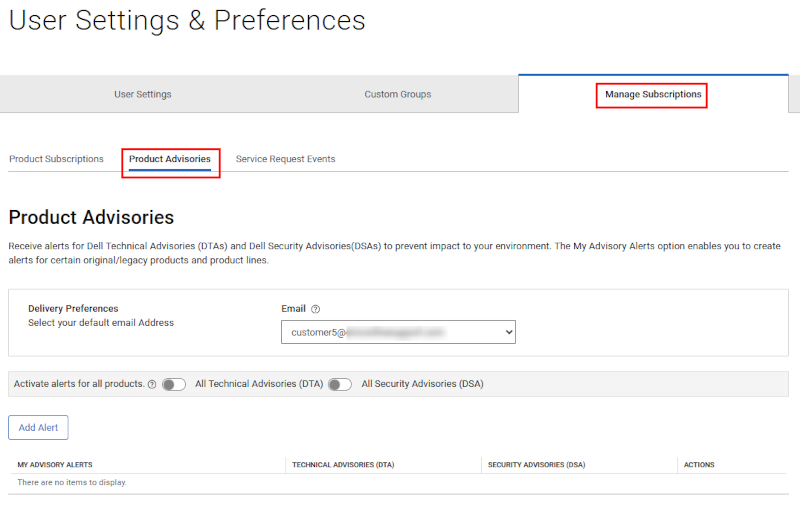
Figure 4: Product Advisories -
In the Delivery Preferences pane, select the email address at which you want to receive the notifications.
-
Click Add Alert.
-
Enter a product name and click Add Product. The alert is created and displayed on the Product Advisories page for the individual product alerts you added.
-
For technical advisories, turn on the All Technical (DTA) toggle switch.
-
For security advisories, turn on the All Security (DSA) toggle switch.
Configure Service Request Notifications
Set up automated email notifications when service requests for products in a specific product group or a specific location are created, updated, or closed. You can also receive notifications for all service requests that you created or where you are assigned as the primary contact.
-
Log in to Dell Support Site.
-
From the top-right corner, click the person icon menu
 and select Preferences. Select the User Settings & Preferences tile to load the desired page.
 -
Click the Manage Subscriptions tab and click the Service Request Events subtab.
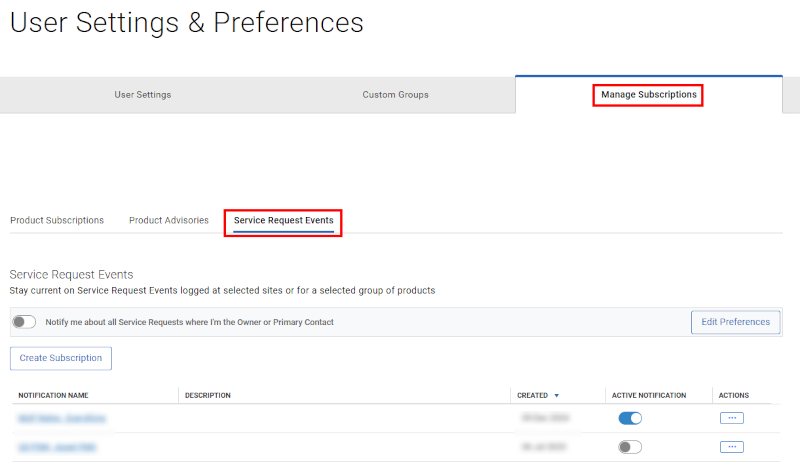
Figure 5: SR Events -
Click Create Subscription. The Create a Service Request Event Notification window is displayed.
-
To receive notifications for a specific product group, perform the following steps:
-
From the View products by list, select My Product Groups.
-
Select the required product group.
-
-
To receive notifications for products from the locations you manage, perform the following steps:
-
From the View products by list, select My Account Sites.
-
Select the required locations from those presented.
-
-
In the Name your notification section, enter a notification name and description.
-
In the Set your preferences section, perform the following steps:
-
Select when you want to receive the notification, for example, when the service request is created or when the service request is closed.
-
From the Initial Severity Level list, select the severity level that was initially assigned to the service request, for example, Severity 1.
-
From the Dial Home Service requests list, include or exclude Dial Home service requests created for your products.
-
Optionally, turn on the Notify me on all escalations toggle switch to receive a notification when a service request is escalated.
-
-
Click Save.
-
To receive notifications for all service requests you created or are assigned as the primary contact, you can turn on the applicable toggle from the Service Request Events subtab and then click Edit Preferences to set applicable preferences for that scenario.
Enable or disable a notification
-
Log in to Dell Support Site.
-
From the top-right corner, click the person icon menu
 and select Preferences. Select the User Settings & Preferences tile to load the desired page.
 -
Click the Manage Subscriptions tab and click the Service Request Events subtab.
-
In the ACTIVE NOTIFICATION column of the subscription, turn on or turn off the toggle switch as desired.
My Groups
My Groups allow you to customize your online support experience by creating a unique filter of products and/or locations to personalize your view in many areas of our online support site such as MyService360. You can create My Groups by individual products or by locations and/or product families.
For more information about My Groups, see Create and Manage Custom Groups
Online Support help options
Need help? Get started from the Online Support links below. If applicable, please contact your Service Account Manager or Customer Success Manager.
|
Topics |
Help Links Tip: Be sure to sign in to the Online Support site to view all available support options. |
|---|---|
|
Get Technical Support for your products.
|
|
|
Enterprise Online Account assistance View and manage company information, contacts, and service requests.
|
Administrative Support
|
|
Asset / Install Base management. Product registrations
|
|