VxRack How to update the CPLD firmware version on Dell PowerEdge servers
Summary: Instructions to update the CPLD firmware on Dell PowerEdge Servers.
This article applies to
This article does not apply to
This article is not tied to any specific product.
Not all product versions are identified in this article.
Instructions
Goals:
- Update the CPLD firmware on Dell PowerEdge Servers
Facts:
- Dell Dell EMC VxFlex integrated rack
- PowerEdge R7x0 and R6x0 server nodes
Solution:
For production compute nodes:
- Follow the best practice processes to properly shut down a Dell EMC VxFlex integrated rack node in ScaleIO before proceeding.
- Stage the firmware update to install the next reboot on the node per the instructions below.
- Put SVM into ScaleIO Maintenance Mode.
- Power off the SVM.
- Put ESXi host into Maintenance Mode.
- Select Power/Reboot on the ESXi node.
For VXMA (controller) nodes:
- Time to Complete VXMA Node: 30 minutes per node
- Stage the firmware update to install the next reboot on the node per the instructions below.
- Log in to Mgmt vCenter.
- One node at a time, place the host into maintenance mode (do not move powered-off nodes).
- Once in Maintenance Mode, reboot the system from vCenter and monitor the process from iDRAC Virtual Console.
- Upon completion the system will reboot and restart normally.
- VXMA nodes will take extended time to come back online, and progress will be "VSAN Initializing SSD" for some time.
- When the initialization is complete, the host should reconnect to vCenter (expect the time to be around 25 minutes).
- Log in to iDRAC, validate the system is healthy, and that the System CPLD is at the new target version.
- Take VXMA host out of maintenance mode, validate health of vSAN and VXMA cluster before proceeding to the next host in the cluster.
- When all nodes are complete, run the vSAN Health check:
- In vCenter Web Client, select Hosts and Clusters.
- Select the cluster, click Monitor -> vSAN - retest the health.
To update the CPLD firmware:
- Obtain the correct software package prior to installation.
- Log in to iDRAC, go to Maintenance/System Update/Manual Update.
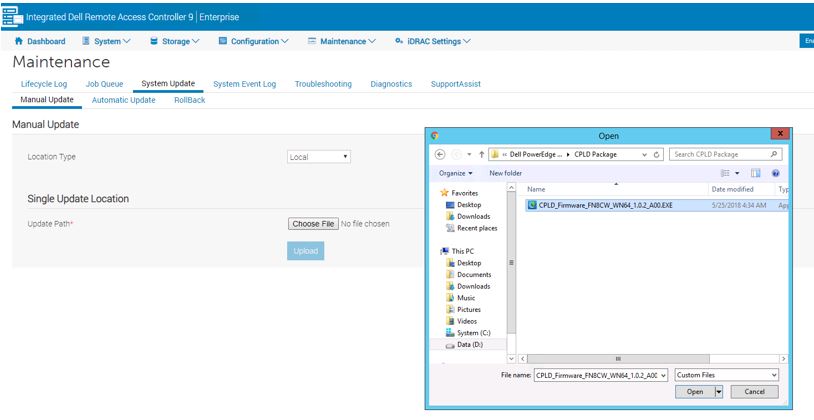
- Click "Choose File" and select the proper file.
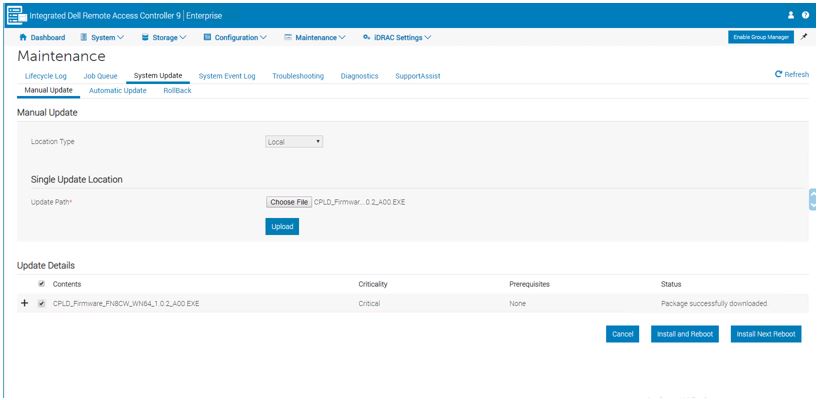
- Click Upload, check the box next to the firmware file, then select Install Next Reboot.
- The Updating Job Queue Status window appears.
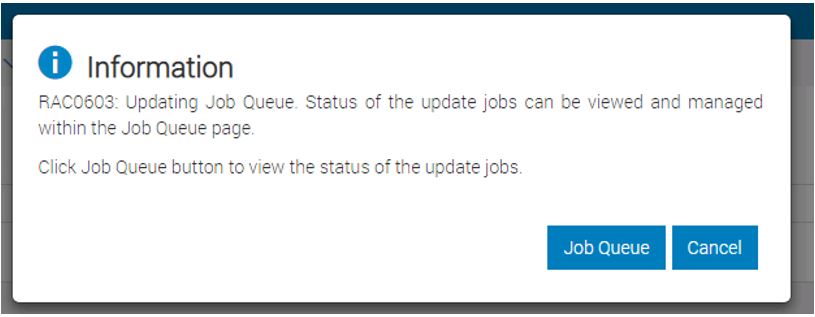
- Click Job Queue to view install progress.
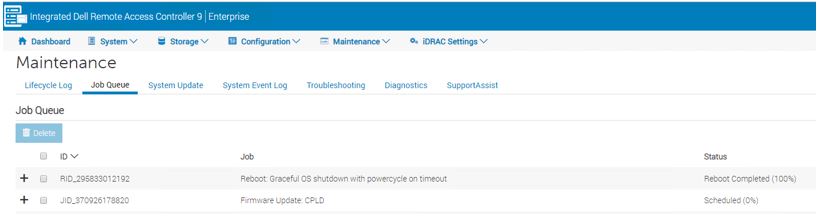
Troubleshooting:
- If the job does not progress correctly, reset iDRAC, and repeat the update process again.
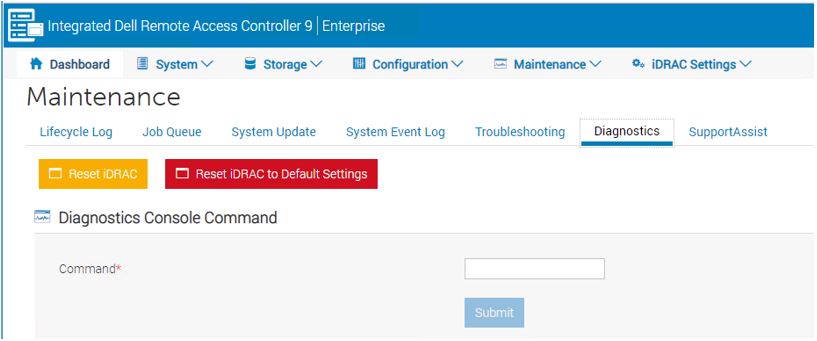
- If the job queue shows that jobs hung, clear the job using the command:
-
racadm job queue delete -i JID_CLEARALL_FORCE
-
- Reset iDRAC again and verify that the job queue is clear (This does not affect the running system, just iDRAC jobs.)
- Repeat the update process again.
Affected Products
VxRackArticle Properties
Article Number: 000205604
Article Type: How To
Last Modified: 17 Feb 2025
Version: 2
Find answers to your questions from other Dell users
Support Services
Check if your device is covered by Support Services.