NetWorker: Reclaiming space from Data Domain Guide
Summary: The goal of this knowledge base article is to address Data Domain capacity issues when used with NetWorker. It provides details of how to reclaim space from Data Domain devices, create detailed problem definitions, identify specific logs, and steps required to resolve the problem. ...
This article applies to
This article does not apply to
This article is not tied to any specific product.
Not all product versions are identified in this article.
Instructions
WARNING: This Article details the methodology for investigating space issues on Data Domain storage. Caution must be used when performing any data removal actions to ensure that only data which is no longer wanted is deleted. Deleting save sets is considered as a last resort. When properly configured, NetWorker's retention life cycle provides a framework where each save set is considered for expiry not only by its retention date, but by the save sets which depend upon it; marking save sets as Expired (
E) is preferred for normal situations where space reclaim is required but the database integrity is not in question. Simply stated, intentionally deleting any data poses a Data Loss scenario. Dell support cannot advise on which data should be deleted or delete any data from an environment. This NetWorker administrator must identify, validate, and perform the deletion with the approval of the sites storage and infrastructure management.
See this published video:
You can also view this video on YouTube.
Step 1: Check if affected volumes are mounted.
From the NetWorker Management Console (NMC) > Media > Device view, check the following:
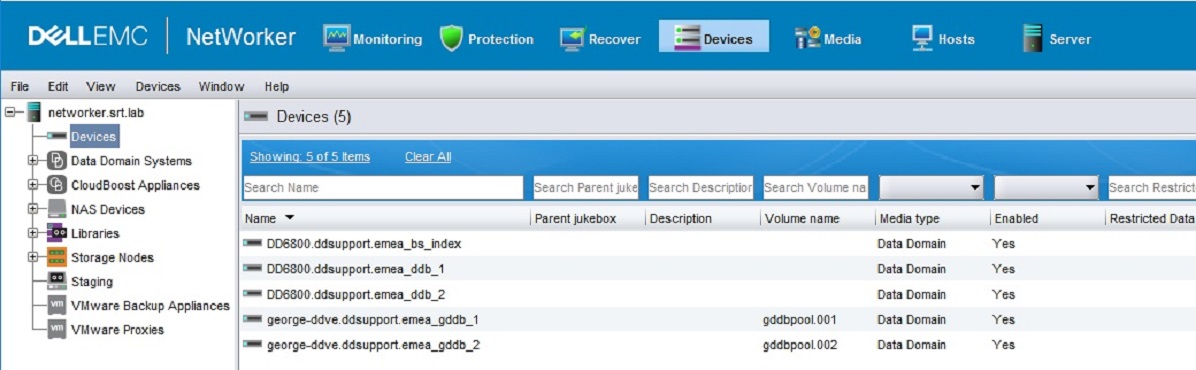
- Is the affected volume mounted?
Action:
If No, mount the volume (look for devices without a listed volume name, right click and select Mount).
If Yes, unmount and mount the volume again. - Check if there are unused directory names.
Action: Use the Device configuration wizard to check if there are unused directory names when compared to the Device Access Information for already configured and mounted devices.
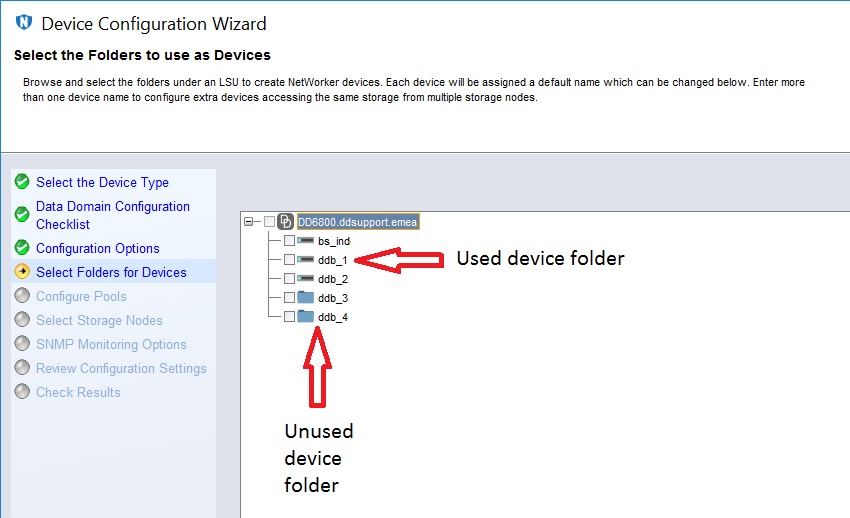
Create new devices for unused directories WITHOUT LABELING them.
For more information, see NetWorker DD Boost Integration Guide Configuring DD Boost devices with the NMC Device Configuration wizard. NetWorker documentation is available through: Support for NetWorker | Manuals & Documents (You must sign in with your Dell Support account to access these materials).
Step 2: Check each affected volume in the media database.
In the NMC -> Media -> Disk volumes view, check the following:
-
- Are any volume expiration dates set to manual?
Action: Set recycle to auto.
See: NetWorker: Old save sets are not deleted automatically when the volume is set to 'manual recycle' at the time of backup - Are any volumes identified as scan needed?
Action: Change volume status to Scan NOT needed if appropriate.
See: NetWorker: How to move volume from "Scan is needed" to "scan is NOT needed - Check if affected volumes have any expired save sets.
Action: Right click volume name and select show save sets and check the status (look for recyclable). Or, from an elevated prompt on the NetWorker server, run:
- Are any volume expiration dates set to manual?
#mminfo -q volume={affected_volume_name},ssrecycle -r savetime,clretent,ssflags,clflags,ssid,cloneid
Step 3: Run nsrstage and nsrim X:
NOTE: The full procedure required is already outlined here: NetWorker: How to force expired save set removal.
Step 4: Do recyclable save sets remain on the affected volumes?
If No, a DD cleaning cycle must run to reclaim space on the Data Domain.
If Yes, Proceed with the following options:
If Yes, Proceed with the following options:
(Optional) Manual Data Deletion:
The following article details the methodology for bulk save set removal: NetWorker: How to delete Multiple or Individual SSIDs
Contacting NetWorker support:
If you must contact support, Create a service request. The following information helps with ensuring the case is routed correctly and aids support in their efforts:
NOTE: Dell support must review this article while signed into the Dell support account site to see Internal Notes.
Basic environment gathering:
From the NetWorker backup server and affected Storage nodes:
- NetWorker Serial ID: NetWorker: How to Identify the Software Serial ID to Open a Support Case
- Hostname
- OS type, and version
- NetWorker version, and build number
- Affected device names and Device Access Information
- Affected volume names
- DD Hostname and IP address
- DD Model
- DDOS version
In addition to the above information, collect the following log bundles:
- NetWorker server NSRGET: NetWorker: How to Use the NSRGet NetWorker Data Collection Tool
- From Data Domain, see Data Domain: How to List Files on the Data Domain File System, sfs-dump to collect SFS Dump data in CSV format.
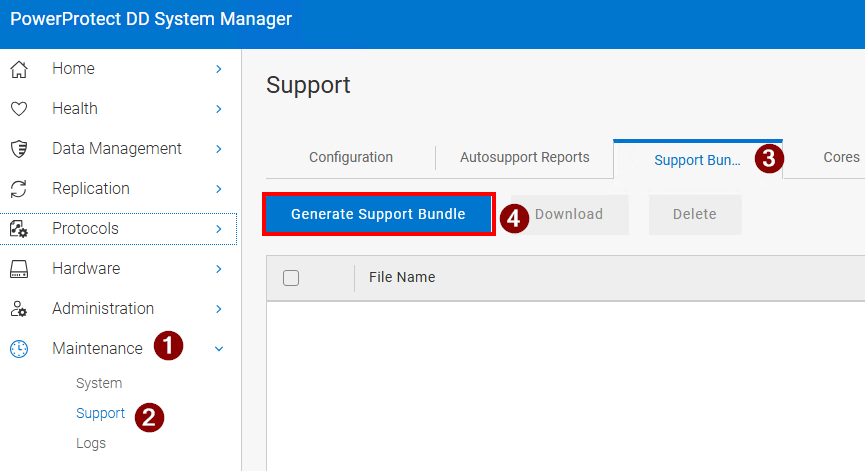
- A Full Data Domain Support Bundle:
Affected Products
Data Domain, NetWorkerProducts
NetWorker FamilyArticle Properties
Article Number: 000023120
Article Type: How To
Last Modified: 27 Jan 2026
Version: 9
Find answers to your questions from other Dell users
Support Services
Check if your device is covered by Support Services.