PowerEdge: How to Perform a vCenter Server Appliance 7.x Backup from vCenter Server Appliance Management Interface
Summary: This article describes the steps and process to schedule and perform a vCSA 7.x backup from the vCenter Server Appliance Management Interface (VAMI).
This article applies to
This article does not apply to
This article is not tied to any specific product.
Not all product versions are identified in this article.
Instructions
Facts:
vCenter Server Appliance (VCSA) 7.x
vCenter Server Appliance Management Interface (VAMI)
Backup
Solution:
To perform a vCenter Server Appliance 7.x backup from VAMI, follow the below steps:
- Log in to VAMI using root user account and password.
https://VCSA_IP_Address_or_FQDN:5480 - On the left pane, select Backup.
A - In the Backup Schedule section, select the Configure option at the right.

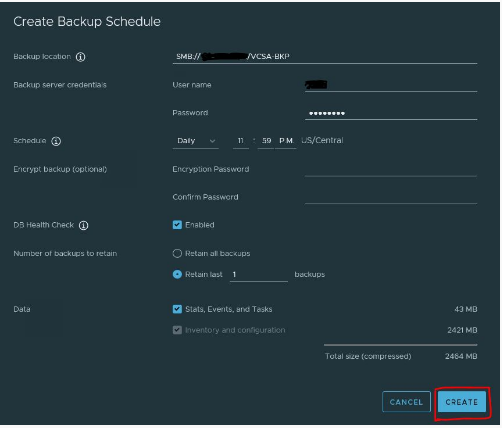
- In the Create Backup Schedule page, configure the backup options. Once the options are filled with the information required, select Create to create the scheduled backup.
Note: The supported protocols for backups are
FTPS, HTTPS, SFTP, FTP NFS, SMB, and HTTP.- Set the Credentials to get access to the folder where the backup's saved.
- For the Schedule of the backups, there are three options: Daily, Weekly, or Custom Choose whichever options fit your needs.
- If required, Encrypt the backup. Configure a password for Encryption.
- It is recommended to choose the option for
Health Check, however it could take additional time to perform the backup. It depends on the data's size managed by the vCenter Server Appliance. - On the Number of backups to retain, configure the number of backups to retain before to deletion.
- On the Data option, choose whether to save the Stats, Events, and Tasks in the backup.
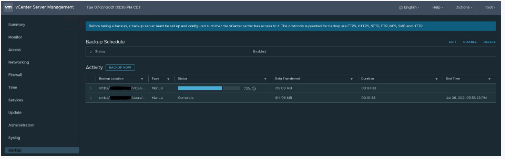
- In the Activity section, select BACKUP NOW option to run the backup manually. All required information must be filled out as in step 4 in order to run the backup manually and immediately. Monitor the backup process.
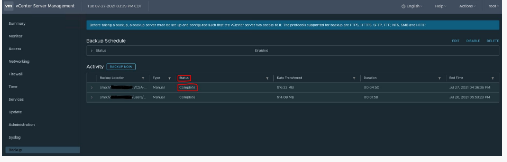
- Ensure that the backup completed successfully and has a status of Complete.
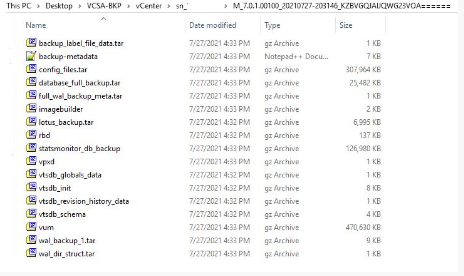
- Validate the VCSA's backup generated successfully in the folder location.
Affected Products
PowerEdge XR2, Poweredge C4140, PowerEdge C6400, PowerEdge C6420, PowerEdge C6520, PowerEdge C6525, PowerEdge FC640, PowerEdge M640, PowerEdge M640 (for PE VRTX), PowerEdge MX5016s, PowerEdge MX7000, PowerEdge MX740C, PowerEdge MX750c
, PowerEdge MX760c, PowerEdge MX840C, PowerEdge R470, PowerEdge R530, PowerEdge R530xd, PowerEdge R540, PowerEdge R550, PowerEdge R630, PowerEdge R640, PowerEdge R6415, PowerEdge R650, PowerEdge R650xs, PowerEdge R6515, PowerEdge R6525, PowerEdge R660, PowerEdge R660xs, PowerEdge R6615, PowerEdge R6625, PowerEdge R670, PowerEdge R730, PowerEdge R730xd, PowerEdge R740, PowerEdge R740XD, PowerEdge R740XD2, PowerEdge R7415, PowerEdge R7425, PowerEdge R750, PowerEdge R750XA, PowerEdge R750xs, PowerEdge R7515, PowerEdge R7525, PowerEdge R760, PowerEdge R760XA, PowerEdge R760xd2, PowerEdge R760xs, PowerEdge R7615, PowerEdge R7625, PowerEdge R770, PowerEdge R7715, PowerEdge R7725, PowerEdge R830, PowerEdge R840, PowerEdge R860, PowerEdge R930, PowerEdge R940, PowerEdge R940xa, PowerEdge R960, PowerEdge T330, PowerEdge T350, PowerEdge T360, PowerEdge T430, PowerEdge T440, PowerEdge T550, PowerEdge T560, PowerEdge T630, PowerEdge T640, PowerEdge XR11, PowerEdge XR12, PowerEdge XR4000r, PowerEdge XR4000w, PowerEdge XR4000z, PowerEdge XR4510c, PowerEdge XR4520c, PowerEdge XR5610, PowerEdge XR7620, PowerEdge XR8000r, PowerEdge XR8610t, PowerEdge XR8620t
...
Article Properties
Article Number: 000205636
Article Type: How To
Last Modified: 11 Mar 2025
Version: 2
Find answers to your questions from other Dell users
Support Services
Check if your device is covered by Support Services.