Set Up Windows
Setting up Windows for the first time? Here’s a quick overview of the most important steps during the first time setup process.
NOTE: Some screenshots may vary based on the version of Windows installed on your device.
Location and keyboard settings
Ensure to select your location and keyboard layout correctly.

License agreement
Review the license agreement. To continue with the set-up, select Accept.

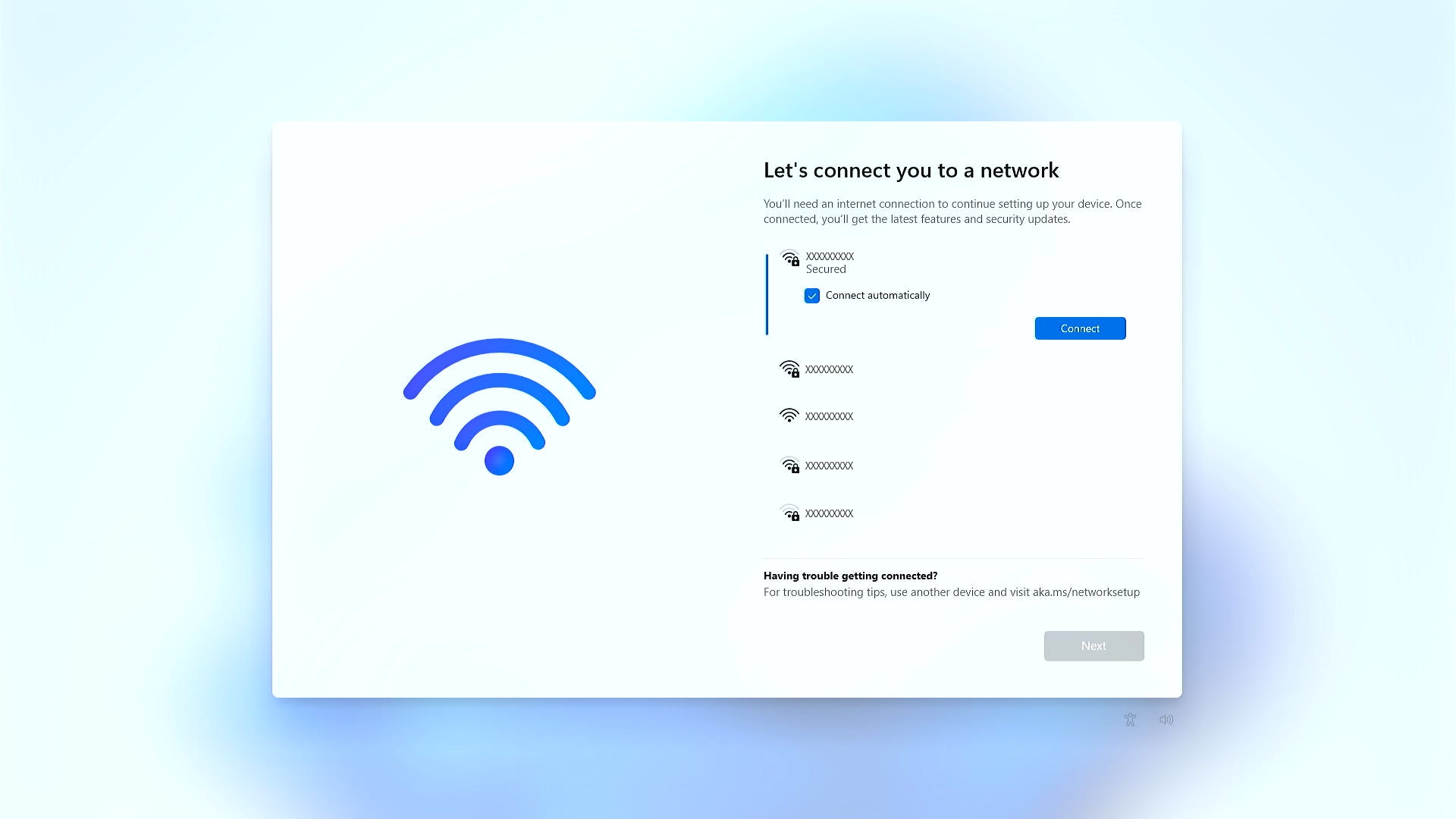
Connect to a network
You are prompted to connect to your wireless network. Select your home or work network from the list and provide the wireless key or password to connect. If your device is connected using a wired connection, the connection occurs automatically.
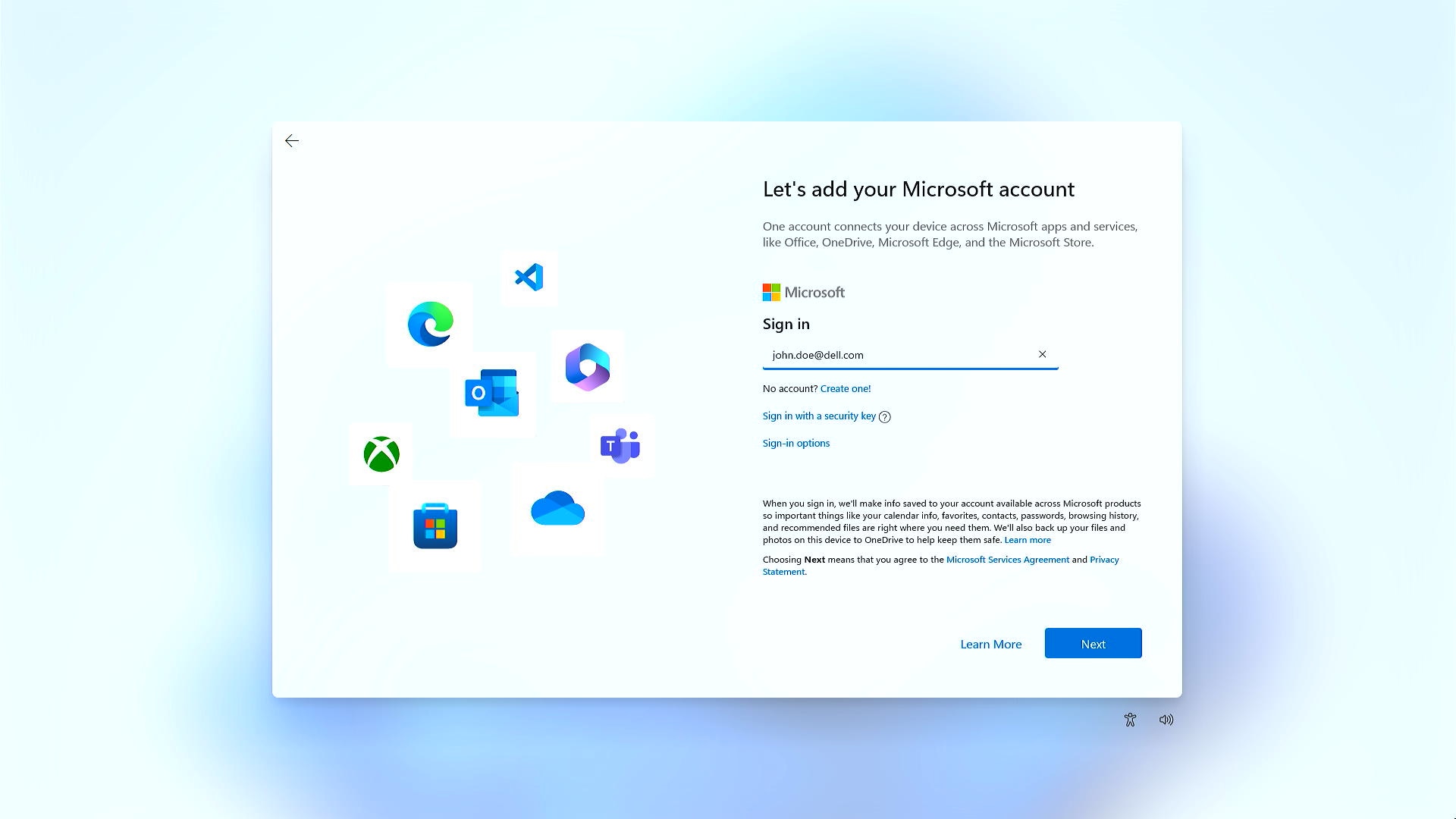
Set up a user account or Microsoft account
Your Microsoft account connects all your Microsoft apps and services. Before you decide to create a new Microsoft account, you should be aware that you might already have one. It is the account that you use to sign in to Skype, Outlook.com, OneDrive, Windows Phone, and Xbox LIVE. Check if I have a Microsoft account.
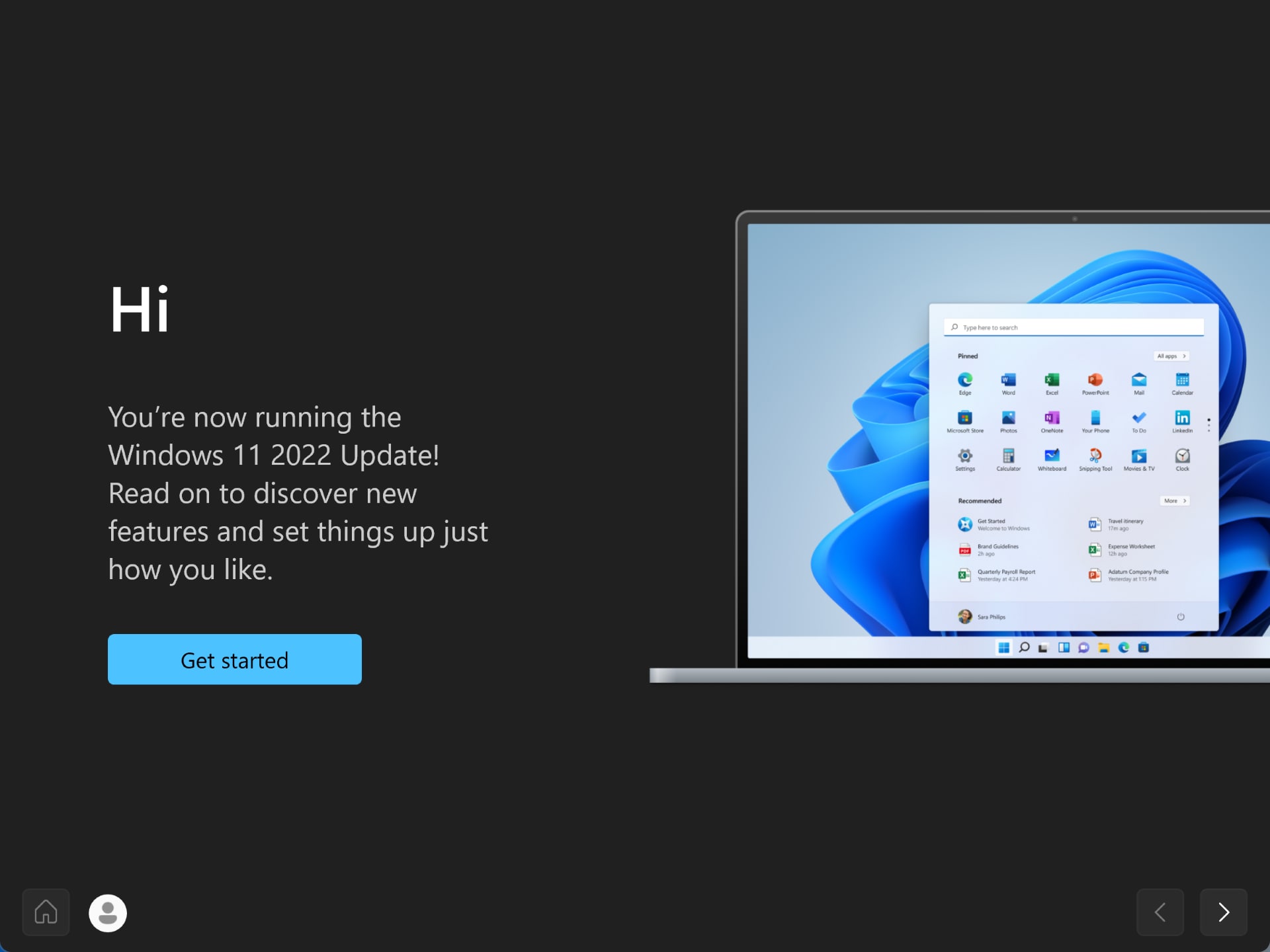
Start with the Get Started app
New to Windows? The Get Started app provides an overview of new Windows features, essential apps, and the redesigned Microsoft Store.
Your Windows is now ready! Next, let us get the latest Windows updates and drivers.
Video Resources

New to Windows?
This quick guide eases your setup process. Choose country, keyboard, and connect t o the internet. Name your device, accept the license, and select personal or work/school use. Log in with your Microsoft account or create one. For more features and apps, explore the 'Get Started' app. Simplify your Windows setup with these easy steps!
Next, let’s download and install the latest Windows updates and drivers. ...
This quick guide eases your setup process. Choose country, keyboard, and connect t o the internet. Name your device, accept the license, and select personal or work/school use. Log in with your Microsoft account or create one. For more features and apps, explore the 'Get Started' app. Simplify your Windows setup with these easy steps!
Next, let’s download and install the latest Windows updates and drivers. ...