

Unsolved
2 Intern
•
48 Posts
0
2872
July 10th, 2024 20:58
Webcam on Latitude 3550 getting marked Unknown USB Device (Device Descriptor Request Failed)
Our org is having a problem with some brand new 3550's we are adding into our workforce.
The webcams on several of the devices (but not all) are getting flagged/marked Unknown USB Device (Decvice Descriptor Request Failed). Resolutions have varied, and for some users it has returned.
Our current most useful solution is to remove the device from Device Manager, disable BitLocker, and re-run a Dell BIOS .exe file (even if it's the same version). Once the laptop reboots, the webcam is working again. We've had about 50 of these occur, and about a dozen user have returned and had to have the same 'fix' applied again.
We use Crowdstrike and block USB Storage -- but other USB Devices work fine as designed.
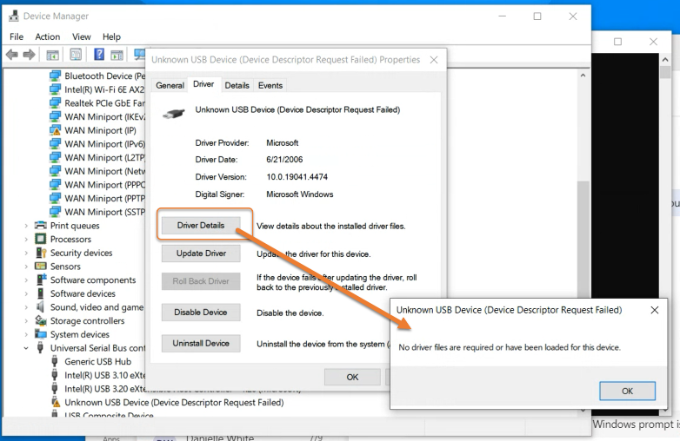
When we look at the Driver File Details (when not working) it is showing up as seen in the image here...
However, we have tested removing Crowdstrike as well -- then rebooting, and the device still does not work until we re-run the BIOS .exe. (see next screenshot, that DOESN'T Show up as Crowdstrike driver).
We have hundreds of Latitude 3500, 3510, 3520, 5511, etc...never had this occur. We still suspect something about Crowdstrike but having removed it on an affected device, and still running Firmware update again, we're running into a wall. Any help/ideas appreciated.
thumper300zx
2 Intern
•
48 Posts
0
December 17th, 2024 15:14
@Rick Brayn Dell has replicated and escalated our issue and is actively investigating. Crossing fingers for a complete solution. Please note we have determined this is not a Crowdstrike issue (unless you have an actual block set up with your sensor, just be sure you do not).
Jeff.coleman
1 Rookie
•
2 Posts
•
2 Points
0
December 17th, 2024 16:55
We found that we did not have the latest drivers injected into our image. We have had most of the laptops work without an issue.
We have one laptop that the camera failed on and even a re-image didn't help. This is getting a service call next week when our tech who deals with that is back.
Others will still lock from time to time but a full power off reboot usually does the trick.
I did have one yesterday where the camera was shown as an unrecognized usb device in device manager. I deleted it and scanned for hardware changes and it came back fine.
I still think there is some kind of an issue but it is by no means consistant.
thumper300zx
2 Intern
•
48 Posts
0
December 17th, 2024 17:05
@Jeff.coleman Ours is not consistent in terms of frequency/user -- but we can replicate the break (going through a process of switching breakout rooms back and forth in Teams or Zoom), and we have found SHUTDOWN > Power Up > Devmgmt > Remove and then Scan will get it working.
Replicating can happen in minutes or hours.
No longer running BIOS update.
(edited)
knt12
1 Rookie
•
2 Posts
•
2 Points
0
January 15th, 2025 17:24
Hello
We are experiencing the same issue on a 3550 but using SentinelOne.
Anyone with a workaround with Windows 11 ? Tried removing from Device Manager etc and still fails.
Thanks
thumper300zx
2 Intern
•
48 Posts
0
January 15th, 2025 18:03
@knt12 Try the following.
Have the user SHUT DOWN (not RESTART).
Then go to Device Manager - remove the Unknown USB Device. Scan for hardware changes.
Though this is not a permanent fix, so far it's the fastest method.
knt12
1 Rookie
•
2 Posts
•
2 Points
1
January 16th, 2025 21:59
@thumper300zx
Thank you this workaround did resolve the issue! (SHUTDOWN is the key)
@Dell Looking forward to FIX or more detailed information about a resolution!
(edited)
thumper300zx
2 Intern
•
48 Posts
0
January 16th, 2025 23:49
@knt12 If you have scripting you could try this... But, honestly pretty fast to address as I said above.
foreach ($dev in (Get-PnpDevice | Where-Object {$_.Name -like "Unknown USB Device (Device Descriptor Request Failed)"})) { &"pnputil" /remove-device $dev.InstanceId }
You would run this.
You could also script a Shutdown.
Always best for user to know.
Once powered back up should be good.
Might be able to script RESTART if Fast Startup is disabled in Windows.
But overall. Waiting for a driver or hardware resolution. We'll see how it goes.
(edited)
CVillalonga
1 Rookie
•
2 Posts
•
2 Points
0
January 26th, 2025 20:22
@thumper300zx
Many thanks for this! I had exactly the same issue on my Asus Zenbook, and the full shutdown (pressing shift while clicking shutdown) has resolved it. The camera was back right after the shutdown (no need to remove the unknown USB device/ Scan for hardware changes) Looks like a Windows/ camera driver issue - see below the camera hardware ID in case it helps.
thumper300zx
2 Intern
•
48 Posts
0
January 31st, 2025 19:09
We have been working directly with Dell and recently been informed of a Realtek RGB camera firmware released in December (it was not listed with Latitude 3550 compatibility)
<ADMIN NOTE: Broken link has been removed from this post by Dell>
<ADMIN NOTE: Broken link has been removed from this post by Dell>
It appears this may also work on additional models and has been re-released for more including the Latitude 3550 in our org. Same firmware/files -- different publication.
https://www.dell.com/support/home/en-us/drivers/driversdetails?driverid=jm0xv&oscode=wt64a&productcode=latitude-15-3550-laptop
We are testing this in our org and so far it's looking very promising. I will follow-up within a week (and if good, then again in a month) with results.
(edited)
thumper300zx
2 Intern
•
48 Posts
0
January 31st, 2025 19:13
@CVillalonga Your vid and pid are different than for our Latitude 3550 models -- but it does appear it's also Realtek. Possible the same firmware could help -- but gets a little more risky. It may not apply since this is a Dell release and you have an Asus.
thumper300zx
2 Intern
•
48 Posts
0
February 10th, 2025 23:25
The firmware noted above still looking like a real solution to this issue. We will continue to monitor our users/devices and report again later.
CVillalonga
1 Rookie
•
2 Posts
•
2 Points
0
March 13th, 2025 20:56
@thumper300zx thanks for your help. I'm back dealing with this issue as Windows manages the camera driver rather than Asus, and both suggest a full reset which I am trying to avoid for now. Glad that you have found a solution, and hopefully a final one.